
Post Date: November 22, 2019
Last Updated: November 05, 2026
Introduction
Export and Import Emails in cPanel is a useful process for backing up important email communications and restoring them whenever required. cPanel Webmail provides the Roundcube interface, which allows users to download individual email messages in .eml format and import them into another email account.
In this tutorial, we will explain how to export emails from cPanel Webmail, create email backups, and import saved messages into Roundcube using a simple step-by-step process.
Prerequisites
Before starting the email export and import process, ensure you have the following:
- An active cPanel hosting account.
- Valid email account login credentials.
- Access to cPanel Webmail through
http://domainname.com/webmail. - Roundcube Webmail enabled on the hosting server.
- Sufficient local storage space to save the exported
.emlfiles. - Access to the destination email account where you want to import the messages.
- A supported web browser to access Roundcube Webmail.
Implementation
Step 1: Log in to cPanel Webmail
Let us assume, we have a mail account “testing1@pheonixsolutions.com”.
I have to take a backup of the mails in this account and restore it.
First, login to your cPanel webmail account by using the following link
http://domainname.com/webmail
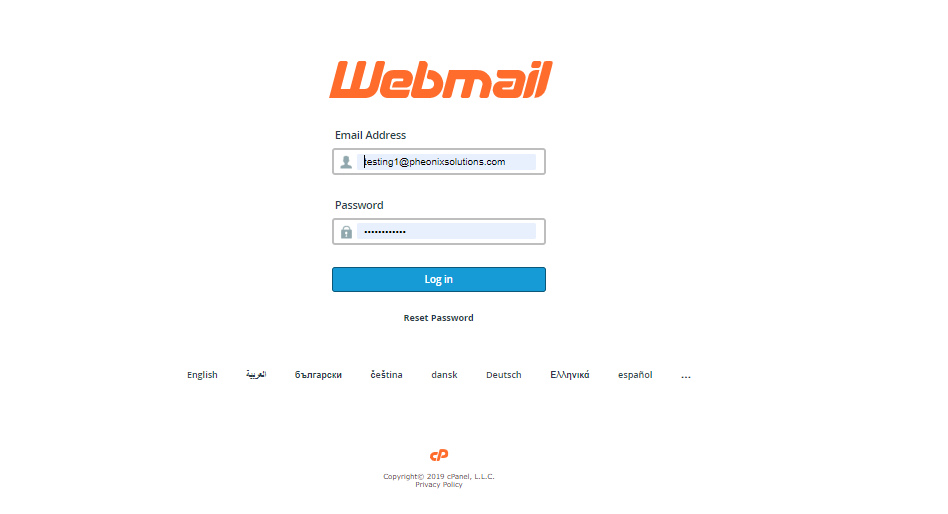
Here, we are going to see how to proceed with the process in the Roundcube webmail.
Step 2:Export Emails from Roundcube Webmail
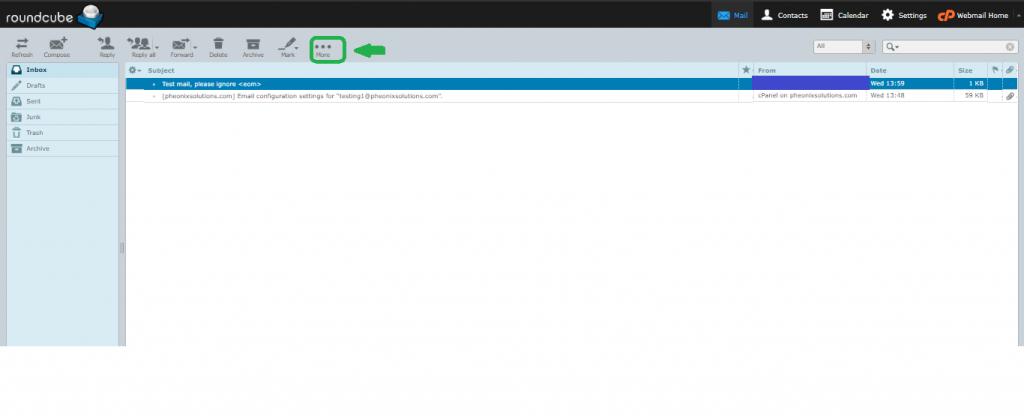
Select the email which you want to take backup and then click on More icon in the menu bar.
Here select the option Download(.eml) and save it in your desktop
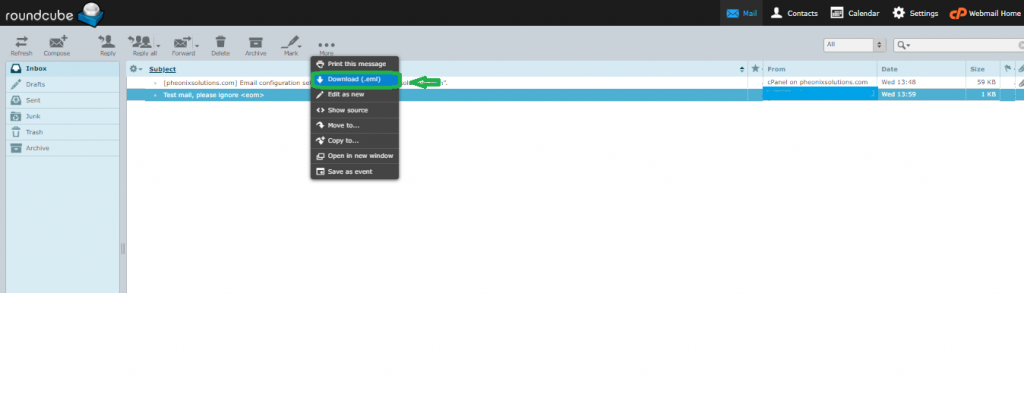
So, you have successfully taken a backup of an e-mail in the RoundCube webmail.
NOTE: Most of the email services support .eml files, so it is possible to easily restore them later on different servers.
Step 3: Access the Roundcube Import Option
Let us see how to restore the e-mail in Roundcube webmail using the backup taken in .eml format.
After logging into the account where you want to restore/import the message, on the left-bottom side, you will find a “settings” icon.
Click on it and select the option Import messages
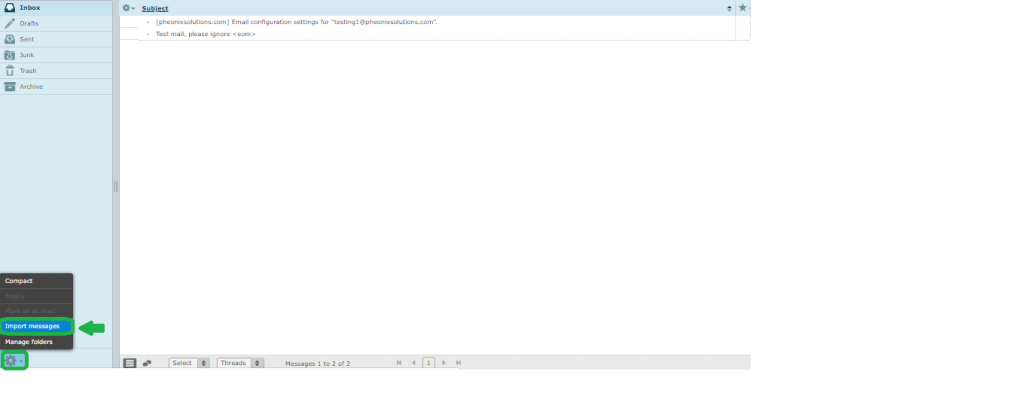
Step 4: Import Emails into Roundcube Webmail
It will ask you to select a file to upload. Browse the file and upload it.
Now you will receive a message that e-mail is successfully imported.
That’s it! We have successfully taken a backup of an e-mail and restored it in RoundCube webmail
Please note that Roundcube does not provide proper functionality to download bulk emails at once. So, to back up the whole folder or account, we recommend using Horde instead.
For additional details about importing emails, refer to the Roundcube Webmail documentation
Conclusion
We have successfully learned how to export and import individual email messages using Roundcube Webmail in cPanel. By downloading emails in .eml format, you can maintain local backups and restore important messages whenever required.
This method is useful when migrating individual emails between accounts or recovering previously exported messages.
Note: Roundcube does not provide a convenient built-in option to export an entire mailbox or bulk-download all emails at once. If you need to back up a complete mailbox or multiple folders, consider using an email client such as Thunderbird or an appropriate mailbox backup solution.
At Pheonix Solutions, we share practical cPanel, web hosting, server management, and email administration tutorials to help users manage their hosting environments efficiently.
FAQs
1. How can I export emails from cPanel Webmail?
Log in to cPanel Webmail, open Roundcube, select the email you want to back up, click the More option, and select Download (.eml). The email will be saved to your local system.
2. What is the .eml file format?
The .eml format is a standard email file format that stores an email message along with its contents, headers, and attachments. It can be opened by many email clients, including Thunderbird and other supported email applications.
3. How can I import an .eml file into Roundcube Webmail?
Log in to Roundcube Webmail, navigate to Settings, select Import messages, browse and upload the .eml file. Once the import is completed, the email will appear in your mailbox.
Related Articles
How do I whitelist a domain in Spam Assassin on cPanel
How to Suspend/Un-suspend a cPanel account via SSH Terminal
How to create a new domain in WHM / cPanel
Need Help with cPanel Email Backup and Restore?
Need help with cPanel Webmail email backup, email restoration, or email migration? Our experts can assist with Roundcube Webmail configuration, email backup and recovery, mailbox migration, email troubleshooting, and other cPanel email management requirements. Get in touch with our team here.