
Post Date: June 06, 2019
Last Updated: October 26, 2026
Introduction
Are you receiving DNS resolver errors when the automatic cPanel & WHM update process runs? The /usr/local/cpanel/scripts/upcp script performs important maintenance and update tasks, but some checks may report errors when the server cannot communicate with its configured DNS resolvers.
One common warning is generated by the check_unreliable_resolvers script. It can indicate that one or more DNS resolvers are timing out or failing to resolve domain names. In some cases, IPv4 resolvers work correctly while IPv6 resolvers are unreachable because of network, routing, firewall, or provider configuration issues.
For example, a server may successfully resolve domains using Cloudflare’s IPv4 DNS addresses (1.1.1.1 and 1.0.0.1) while Google’s IPv6 DNS addresses time out.
In this guide, we will explain how to identify the cause, check your server’s DNS configuration, configure reliable resolvers, and verify the results safely.
Important: A resolver-check warning does not automatically mean the entire cPanel update failed. Confirm the final upcp status and review the update logs before concluding that the update was unsuccessful.
1. Understand the cPanel update error
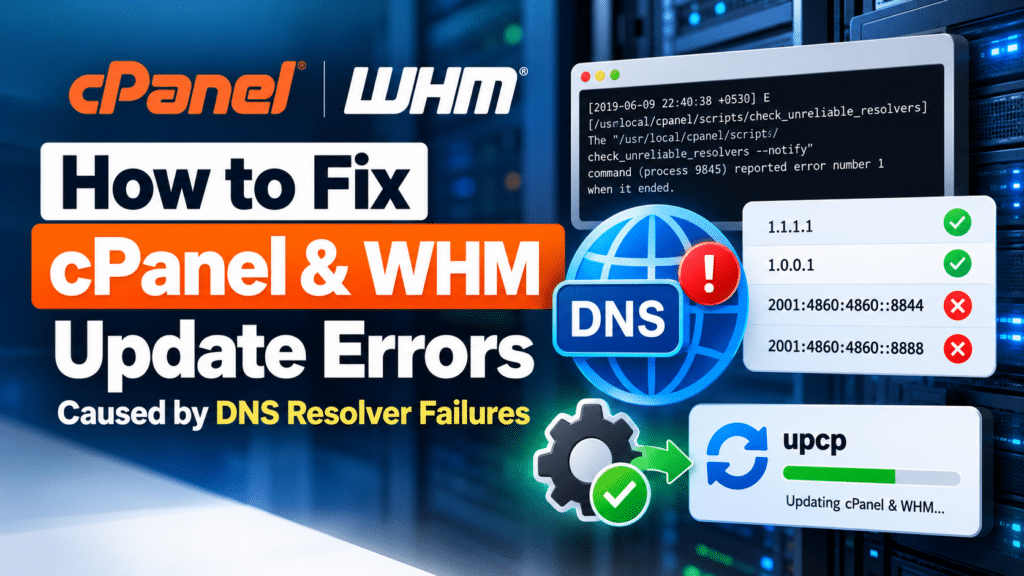
During an automatic update, you may see an error similar to the following:
[2019-06-09 22:40:38 +0530] E
[/usr/local/cpanel/scripts/check_unreliable_resolvers]
The "/usr/local/cpanel/scripts/check_unreliable_resolvers --notify"
command (process 9845) reported error number 1 when it ended.
This message indicates that the DNS resolver check reported a problem. It does not, by itself, identify the underlying cause or prove that the complete update process failed.
The resolver check evaluates whether configured DNS servers can successfully resolve domain names. If a resolver repeatedly times out or fails to respond, cPanel may report it as unreliable.
Common causes
- Unreachable IPv6 resolvers: The server has IPv6 DNS addresses configured but lacks working IPv6 connectivity or routing.
- Firewall restrictions: Outbound DNS traffic over UDP or TCP port 53 is blocked.
- Incorrect resolver configuration: The
/etc/resolv.conffile contains unreachable or inappropriate nameservers. - Hosting provider network issues: The provider’s network or DNS service is experiencing problems.
- Resolver outages or timeouts: A DNS provider is temporarily unavailable or responding too slowly.
- Perl locale warnings: The system locale environment is not configured correctly. This is a separate issue from DNS resolver failures.
2. Check the current DNS resolver status
Log in to your server using SSH as the root user, or use an authorized root shell.
Run the following command:
/usr/local/cpanel/scripts/check_unreliable_resolvers
The output may resemble this example:
Partial DNS resolver failure

Resolver                 State
1.0.0.1                  Normal
1.1.1.1                  Normal
2001:4860:4860::8844     Failed
2001:4860:4860::8888     Failed
The addresses represent:
1.0.0.1and1.1.1.1: Cloudflare public DNS resolvers over IPv4.2001:4860:4860::8844and2001:4860:4860::8888: Google Public DNS resolvers over IPv6.
In this example, the IPv4 resolvers are responding, while both configured IPv6 resolvers are failing.
This pattern suggests an IPv6 DNS connectivity problem, although further testing is needed to determine whether the cause is routing, firewall configuration, provider connectivity, or the resolver service itself.
3. Inspect the /etc/resolv.conf file
The /etc/resolv.conf file contains the DNS nameservers used by the system’s resolver configuration.
Check its current contents:
cat /etc/resolv.conf
Example output:
nameserver 1.1.1.1
nameserver 1.0.0.1
nameserver 2001:4860:4860::8844
nameserver 2001:4860:4860::8888
If your configuration contains only the two IPv4 addresses, but the resolver check reports failed IPv6 resolvers, check whether those IPv6 addresses are configured elsewhere or whether the script is testing a broader resolver configuration.
Do not assume that every resolver listed in a diagnostic report must be present in /etc/resolv.conf. Compare the actual file contents with the report before making changes.
4. Test DNS resolution independently
Before changing your DNS configuration, test the affected resolvers directly.
If the dig utility is installed, run:
dig @1.1.1.1 google.com
dig @1.0.0.1 google.com
dig @2001:4860:4860::8844 google.com
dig @2001:4860:4860::8888 google.com
Review the status, answer section, and query time in each response.
A successful response typically includes:
status: NOERROR
A timeout or missing response may indicate a connectivity or resolver problem. NOERROR alone does not guarantee that every DNS record exists; inspect the answer section as well.
If IPv4 queries work and IPv6 queries time out, verify that the server has working IPv6 connectivity before removing or replacing the IPv6 resolvers.
You should also check whether outbound DNS traffic is permitted over both UDP and TCP port 53.
5. Configure reliable DNS resolvers in WHM
The recommended method for changing cPanel & WHM’s resolver configuration is through the WHM interface.
Follow these steps:
- Log in to WHM as root.
- Navigate to Home → Networking Setup → Resolver Configuration.
- Click Proceed.
- Enter the primary and secondary DNS resolver IP addresses.
- Add a tertiary resolver if appropriate.
- Review the settings and confirm the changes.
Official documentation: cPanel & WHM Resolver Configuration
Which DNS resolvers should you use?
Prefer the DNS resolver addresses recommended by your hosting or network provider. If you choose a public DNS service, confirm that it is suitable for your server and hosting requirements.
For example, Google Public DNS over IPv4 uses:
nameserver 8.8.8.8
nameserver 8.8.4.4
Cloudflare Public DNS over IPv4 uses:
nameserver 1.1.1.1
nameserver 1.0.0.1
Use one appropriate resolver configuration rather than mixing addresses indiscriminately. Only configure IPv6 resolver addresses if the server can reach them reliably.
Important: Public DNS resolvers can affect DNS-based email reputation and blocklist checks. cPanel documentation recommends considering your hosting or network provider’s resolvers if you use DNS-based spam blocklists.
6. Update /etc/resolv.conf only when necessary
If you need to modify the file manually, first back it up:
cp -a /etc/resolv.conf /etc/resolv.conf.backup
Then edit it using your preferred text editor:
vi /etc/resolv.conf
For a server intentionally configured to use Google Public DNS over IPv4, the file could contain:
nameserver 8.8.8.8
nameserver 8.8.4.4
Alternatively, if you choose Cloudflare’s IPv4 resolvers:
nameserver 1.1.1.1
nameserver 1.0.0.1
Do not apply both examples together unless you have a specific reason to do so.
Warning: On some systems, /etc/resolv.conf is managed by NetworkManager, DHCP, cloud-init, or another network-management service. Manual changes may be overwritten. Where possible, make persistent changes through WHM’s Resolver Configuration interface or the appropriate system network configuration.
7. Resolve the Perl locale warning separately
The diagnostic output may also include a warning similar to this:
perl: warning: Setting locale failed.
perl: warning: Please check that your locale settings:
    LANGUAGE = (unset),
    LC_ALL = (unset),
    LC_CTYPE = "UTF-8",
    LANG = (unset)
are supported and installed on your system.
perl: warning: Falling back to the standard locale ("C").
This warning means Perl cannot initialize the locale specified by the current environment. It is not proof of a DNS failure, and changing DNS resolvers will not necessarily resolve it.
Check the current locale configuration:
locale
locale -a
If LC_CTYPE is set to UTF-8 but the system does not have a matching supported locale, configure a valid locale appropriate for your operating system.
For example, a common UTF-8 locale is C.UTF-8 on systems that support it. Verify availability with locale -a before using it.
Avoid making broad environment changes or modifying cPanel’s bundled Perl configuration without understanding the impact. Resolve the locale warning independently from the DNS issue.
8. Recheck the DNS resolver status
After correcting the resolver configuration, run:
/usr/local/cpanel/scripts/check_unreliable_resolvers
If all configured resolvers pass the checks, the output should indicate success, for example:
OK
If the script still reports failures, investigate the remaining resolvers and network configuration instead of repeatedly changing nameserver addresses.
You can also verify basic name resolution using:
getent hosts cpanel.com
And, if dig is installed:
dig google.com
Successful DNS queries are a useful confirmation, but they do not replace the cPanel resolver check or verification of the overall update status.
9. Verify the cPanel update status
Once the resolver issue has been addressed, review the cPanel update logs and confirm whether the original update completed successfully.
You can check the installed cPanel version using:
/usr/local/cpanel/cpanel -V
If you need to run an update manually, use the documented cPanel update script as root:
/usr/local/cpanel/scripts/upcp
Run this command only when appropriate for your maintenance window. Monitor its output and review the relevant logs if errors occur.
If upcp continues to fail after DNS resolution is working, investigate the specific update error. Other possible causes include package conflicts, unavailable update servers, operating system dependency problems, disk-space limitations, or version blockers.
Official update guidance: How to Update Your System
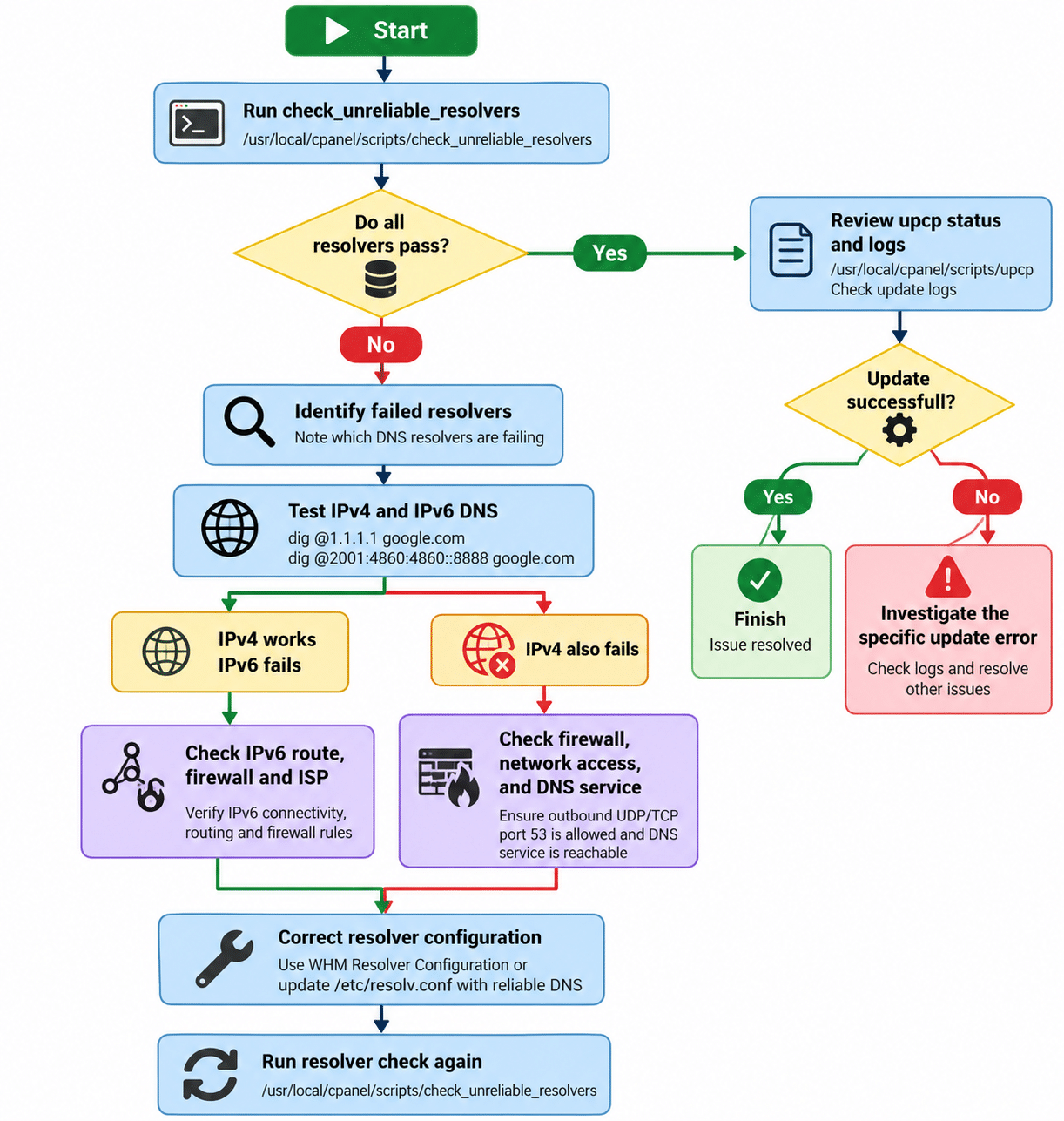
DNS troubleshooting flowchart
Use this decision flow to identify the next troubleshooting step.
Common mistakes to avoid
- Replacing DNS resolvers without testing whether they are reachable.
- Removing IPv6 resolvers when the server actually requires working IPv6 connectivity.
- Editing
/etc/resolv.confwithout checking whether another service manages it. - Treating a Perl locale warning as the cause of every DNS error.
- Assuming that one resolver-check error means the entire cPanel update failed.
- Ignoring DNS-based email reputation and spam-blocklist requirements when selecting public resolvers.
Conclusion
DNS resolver failures during cPanel & WHM maintenance can often be resolved by identifying unreachable nameservers, checking network connectivity, and configuring suitable DNS resolvers. In the example discussed here, the IPv4 resolvers respond successfully while the IPv6 resolvers time out, making IPv6 connectivity a key area to investigate.
Start by running check_unreliable_resolvers, inspecting /etc/resolv.conf, and testing the affected DNS servers. Correct the underlying network or resolver configuration, rerun the diagnostic, and then verify the final upcp status. Handle Perl locale warnings separately, and consult your hosting provider or cPanel Support if the problem persists.
The key takeaway: Diagnose the failing component first, make the smallest appropriate configuration change, and verify the result before considering the issue resolved.
Frequently Asked Questions
1. Why does cPanel report check_unreliable_resolvers errors?
The script reports errors when one or more DNS resolvers fail its reliability checks. Common causes include timeouts, blocked DNS traffic, unreachable IPv6 addresses, and network problems.
2. Does this error mean that cPanel & WHM failed to update?
Not necessarily. The message indicates that the resolver check returned an error. Review the overall upcp output and logs to determine whether the update itself failed.
3. Can I use Google Public DNS on a cPanel server?
Yes, Google Public DNS is an option, provided it is appropriate for your network and server configuration. However, hosting-provider resolvers may be preferable for certain DNS-based email reputation and blocklist checks.
Related Articles
How to Install WHM cPanel on Ubuntu 20.04
How to use the automount feature with cPanel backups
Need Help with cPanel & WHM DNS Resolver Issues?
Need help resolving cPanel & WHM update errors, DNS resolver failures, or server configuration issues? Our experts can assist with cPanel troubleshooting, WHM administration, DNS configuration, server updates, hosting management, and website maintenance. Get in touch with our team here.