Post Date: July 25, 2019
Last Updated: October 28, 2026
Introduction
This guide explains how to fix the Plesk allowed memory size error on Linux servers. This issue occurs when Plesk’s PHP back-end exceeds its configured memory limit, resulting in blank pages, failed operations, or PHP fatal errors. By increasing the panel’s memory_limit and restarting the required services, you can resolve the Plesk allowed memory size error and restore normal panel operations.
PHP Fatal error: Allowed memory size of 268435456 bytes exhausted (tried to allocate 16384 bytes)
ERROR: Out of memory (allocated 23866324) (tried to allocate 12997459 bytes)
The two numbers differ from case to case. The first is the current limit, and the second is the amount of memory the failing step asked for. It commonly appears when you try to extract a large file in the Plesk control panel, open a very large database table, view big log files, or list a long mail queue.
The fix is to raise the Plesk memory_limit in the panel’s own php.ini and restart two services. The original guide had that right. This update adds a way to confirm you’re editing the right setting, a backup step, and sensible values.
Prerequisites
Before you fix the allowed memory size error, make sure you have:
- SSH access to the Plesk server with root privileges
- Plesk on Linux (the steps for Plesk on Windows use a different file path)
- A rough idea of how big the file or table is that triggered the error
Architecture
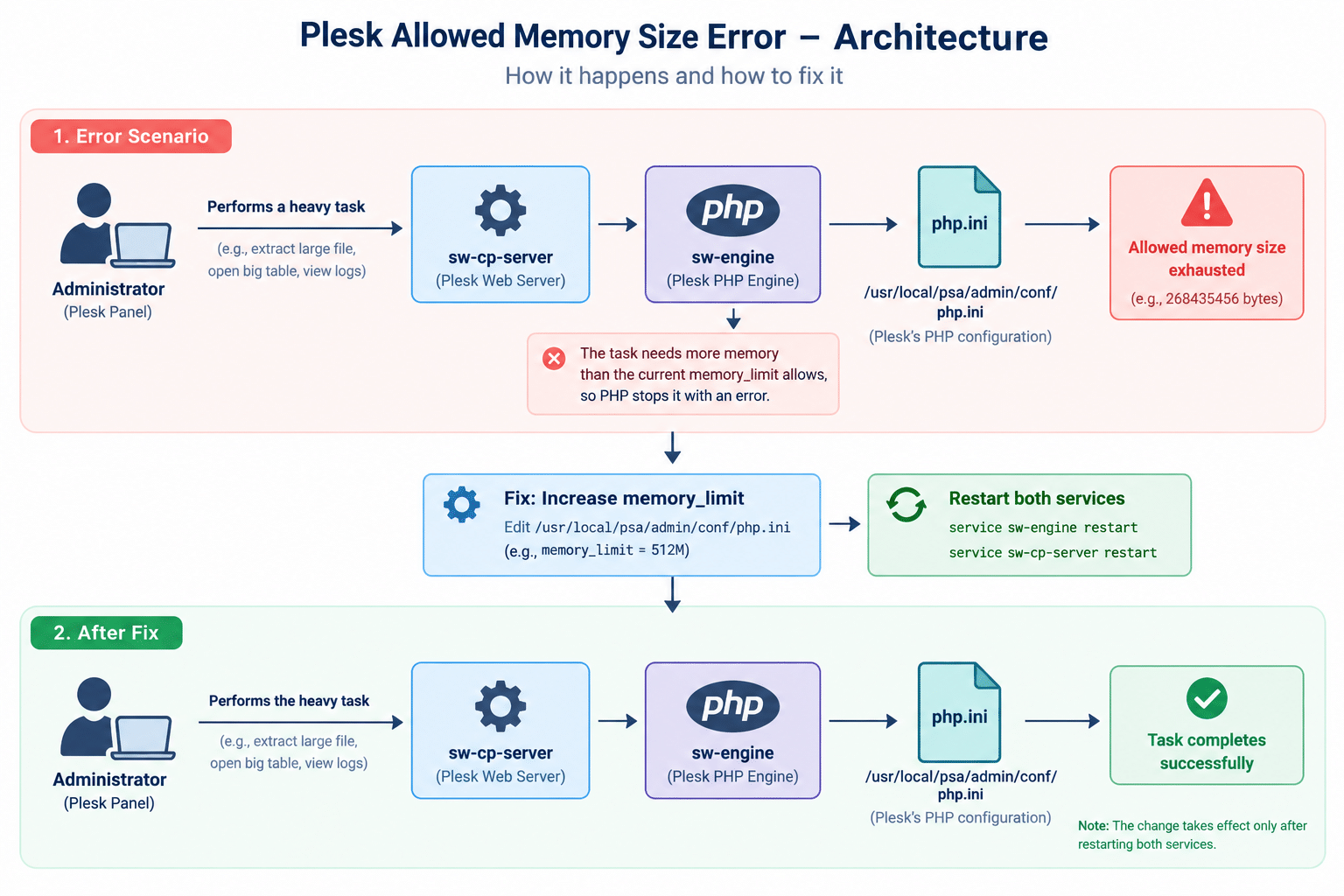
- The Plesk control panel is itself a PHP application. It runs on its own PHP engine,
sw-engine, behind Plesk’s own web server,sw-cp-server - That PHP engine reads its own configuration file,
/usr/local/psa/admin/conf/php.ini, which is completely separate from the PHP settings your websites use - When a panel task needs more memory than
memory_limitallows, PHP stops it with the allowed memory size error - The engine reads
php.inionly when it starts, so a change has no effect until you restart the services
The image below shows how the allowed memory size error happens inside Plesk. For more detail, see Plesk’s own article on this error and PHP’s reference for memory_limit.
Steps to Fix the Plesk Allowed Memory Size Error
1. Confirm the Error Comes from Plesk Itself
Check Plesk’s panel log for the error:
sudo tail -n 50 /var/log/plesk/panel.log
Look at the file path in the error line. If it points into Plesk’s own folders, such as /usr/local/psa/ or /opt/psa/, the allowed memory size error is coming from the panel and this guide applies.
Note: If the path points to a website under
/var/www/vhosts/, the problem is that site’s own PHP limit. Change it in Plesk under Domains → your domain → PHP Settings instead. Editing the panel’sphp.iniwon’t affect it.
2. Check the Current Value and Back Up the File
grep memory_limit /usr/local/psa/admin/conf/php.ini
sudo cp -a /usr/local/psa/admin/conf/php.ini /usr/local/psa/admin/conf/php.ini.bak
3. Increase the Plesk memory_limit
Open the file in an editor:
sudo vi /usr/local/psa/admin/conf/php.ini
Find the memory_limit line and raise it, for example:
memory_limit = 512M
Plesk’s own examples use 512M for general cases. For a task that handles a very large file or table, set it higher than the size of that object. The memory_limit is a per-request ceiling, not memory reserved up front, but don’t set it beyond what your server can realistically provide.
4. Restart the Plesk Services
service sw-engine restart
service sw-cp-server restart
Note: Restart both. A common reason for “I changed it but nothing happened” is restarting only one service, or none, since the change is read only when the services start.
5. Retry the Operation
Repeat the action that failed, such as extracting the large file. The allowed memory size error should be gone. To confirm the new limit is in place:
grep memory_limit /usr/local/psa/admin/conf/php.ini
Troubleshooting the Plesk Allowed Memory Size Error
If the Plesk allowed memory size error continues after increasing the memory limit, verify that you edited the correct panel configuration file. Check the Plesk panel logs for additional PHP errors and confirm that both sw-engine and sw-cp-server have restarted successfully. If the error originates from a website rather than the Plesk panel, update that domain’s PHP settings instead.
If the allowed memory size error continues, check these:
- You didn’t restart both services. Run both restart commands from Step 4 again
- The number in the error is still the old limit. The change isn’t being read. Recheck the file and the value
- The error is from a website, not the panel. Look at the file path, as described in Step 1, and use the domain’s PHP Settings instead
- A scheduled task fails with the same message. Add the limit to the command itself, for example
-d memory_limit=128Mafter the PHP command in the task - The value goes back to the default later. Plesk’s article on this error describes a way to make the setting persistent. Check it if the limit reverts after an update or maintenance
Conclusion
To fix the allowed memory size error in Plesk, confirm it comes from the panel’s own PHP, back up and edit /usr/local/psa/admin/conf/php.ini to raise the Plesk memory_limit, then restart both sw-engine and sw-cp-server. Retry the failed operation, and use a higher value only as large as the task really needs.
Frequently Asked Questions
Does this change the allowed memory size for my websites? No. This file controls only Plesk’s own panel. Each website’s PHP limit is set separately under Domains → PHP Settings.
How high should I set the allowed memory size? 512M is a common starting point. For a very large file or table, go above the size of that object, then lower it again if you like once the task is done.
Why do I need to restart two services? sw-engine is the panel’s PHP engine and sw-cp-server is its web server. Both need to pick up the new configuration, so restart them both.
Does the same file path apply on Windows? No. On Windows, the panel’s configuration is in the admin\conf folder inside the Plesk installation directory.
What causes the Plesk allowed memory size error?The Plesk allowed memory size error occurs when a panel operation requires more memory than the configured PHP memory_limit allows. Increasing the limit to an appropriate value can help resolve the issue.
Related Articles
Downgrade PHP 5.3 to 5.2 in centos 6
Talk to Our Technology Experts
Managing Plesk servers or fixing recurring panel errors? Our team can help with Plesk administration, PHP and server tuning, and ongoing hosting support.