
Post Date: June 18, 2019
Last Updated: October 27, 2026
Introduction
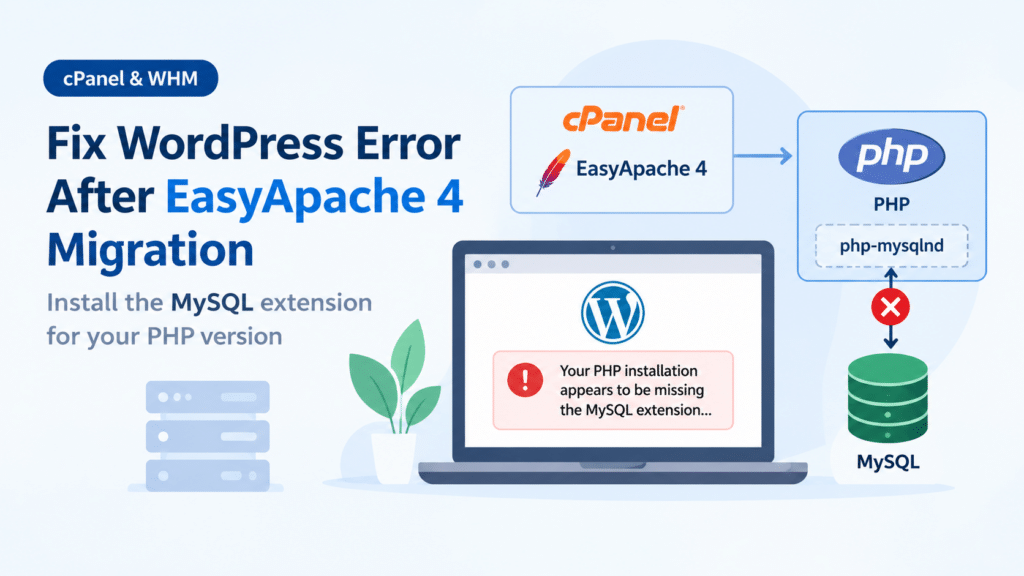
This guide explains how to fix the WordPress error that appears on cPanel servers after moving from EasyApache 3 to EasyApache 4:
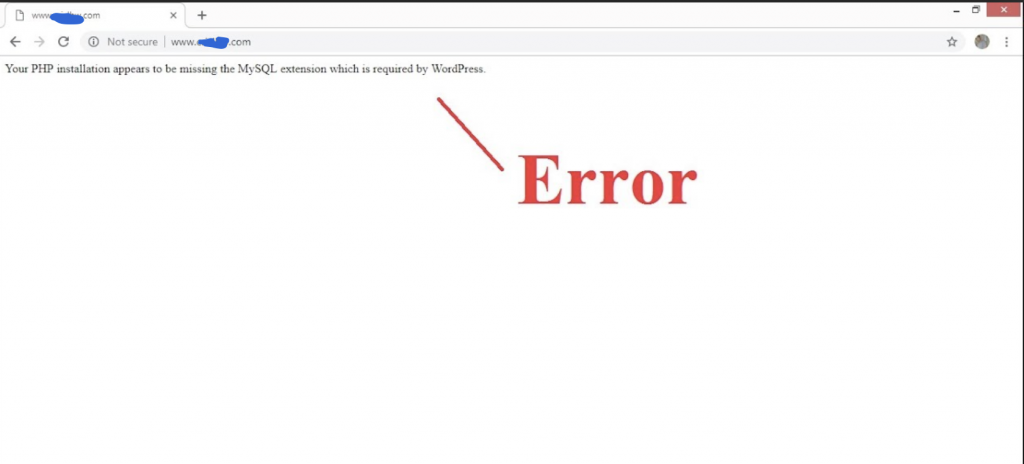
Your PHP installation appears to be missing the MySQL extension which is required by WordPress.
When PHP is missing the MySQL extension, WordPress can’t talk to its database, so every WordPress site on the server can show this error at once. EasyApache 4 builds PHP from separate packages, one for each PHP version and one for each extension. If the profile you migrated with didn’t include the MySQL extension for a PHP version, that version starts without it. The fix is to install it for the PHP versions your sites actually use.
The original guide gave the right idea, but its command could install far more than you need and it skipped several steps. This update fixes that.
Prerequisites
Before you fix PHP missing the MySQL extension, make sure you have:
- Root access to the cPanel server, with WHM access
- The domain of one affected WordPress site
- A backup or snapshot, if this is a production server
Architecture
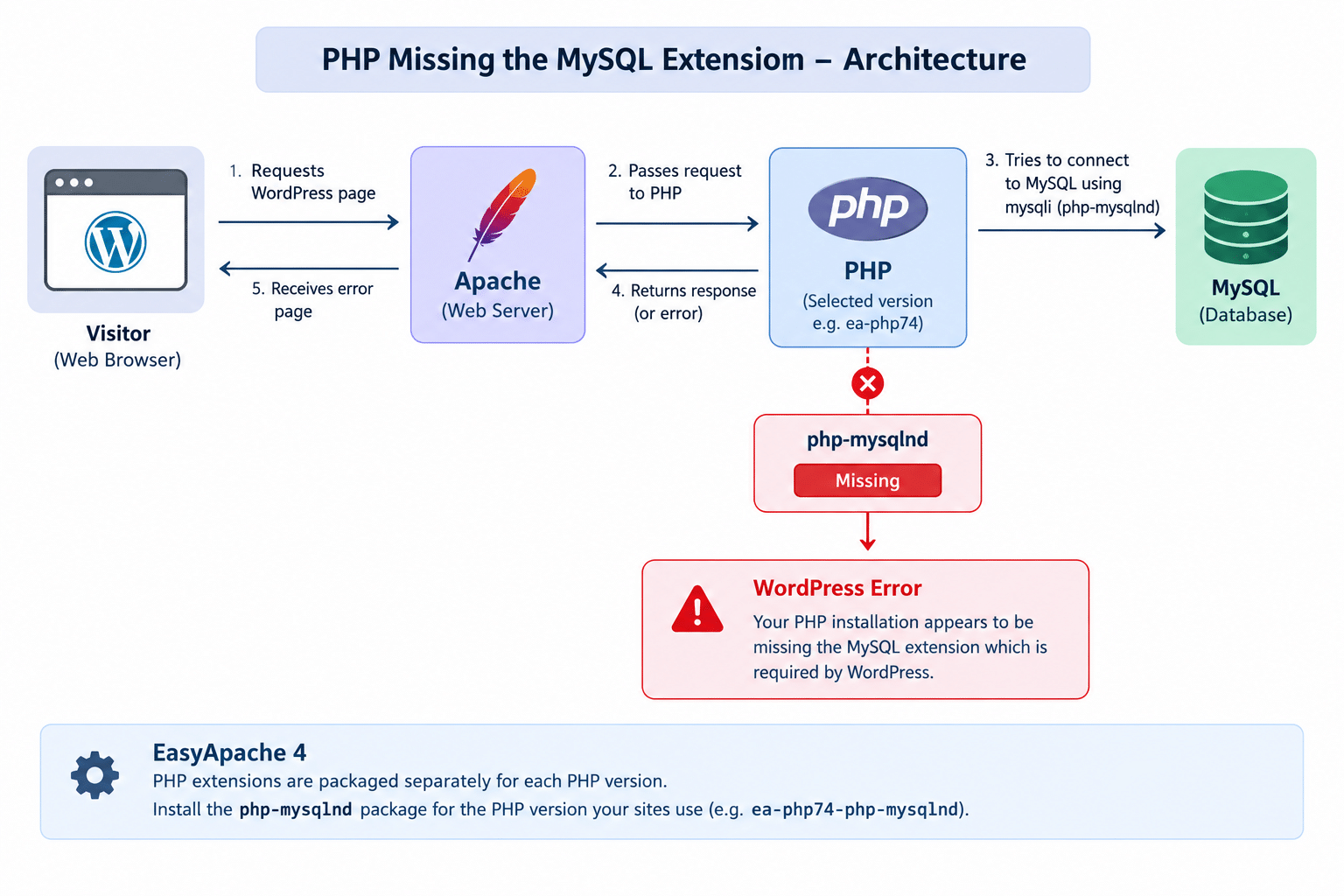
- A visitor requests a WordPress page, and Apache hands the request to the PHP version assigned to that domain
- WordPress code runs in that PHP version and reaches MySQL through the
mysqliextension, which thephp-mysqlndpackage provides. Despite the old wording of the message, current WordPress usesmysqli - EasyApache 4 PHP extensions are packaged separately for each version, such as
ea-php74-php-mysqlnd. Installing it for one version doesn’t add it to the others
The image below shows what happens when PHP is missing the MySQL extension. For general background, see cPanel’s documentation and WordPress’s server requirements.
Steps to Fix PHP Missing the MySQL Extension
1. Find the PHP Version Your Site Uses
In WHM, go to Software → MultiPHP Manager and find the affected domain. Note its PHP version, for example ea-php74. This tells you which PHP version is missing the MySQL extension. If several versions are in use, repeat the fix for each one.
To see which EasyApache 4 PHP versions exist on the server:
ls /opt/cpanel | grep ea-php
If a site is on an old PHP version that has reached end-of-life, consider moving it to a supported version in MultiPHP Manager while you’re here, after confirming the site works on it.
2. Install the Extension
You can do this in WHM or on the command line.
Method 1: In WHM’s EasyApache 4 PHP extensions
- Log in to WHM as root and go to Software → EasyApache 4
- Next to your currently active profile, click Customize
- Open the PHP Extensions tab
- Find
php-mysqlndfor your PHP version and switch it on - Click Review, then Provision
Note: The original guide stopped at “enable / install it”. In EasyApache 4, nothing changes until you review and provision the profile, so that last step matters.
Method 2: On the command line
To fix PHP missing the MySQL extension from the command line, install it for the specific version you found in Step 1:
yum install ea-php74-php-mysqlnd
Replace 74 with your version. To list what’s available:
yum list available "ea-php*-php-mysqlnd"
Note: The original used
yum install ea-php*-mysql*. That wildcard can install the extension for every PHP version in the repository, which can pull in PHP versions you don’t use, including old ones. Install it only for the versions your sites run.
3. Confirm the Extension Is Loaded
To confirm PHP is no longer missing the MySQL extension, check the version you installed for, using its own command-line binary:
/opt/cpanel/ea-php74/root/usr/bin/php -m | grep -i mysql
You should see mysqli, mysqlnd, and pdo_mysql listed.
4. Restart the Web Services
Installing a package usually reloads the services, but if the error persists, restart both Apache and PHP-FPM:
/scripts/restartsrv_httpd
/scripts/restartsrv_apache_php_fpm
5. Reload the Site
Open the affected WordPress site and refresh. Installing the extension clears the error about missing the MySQL extension, and the site should load normally.
Troubleshooting
If WordPress still says PHP is missing the MySQL extension, check these:
- You fixed the wrong PHP version. The domain may use a different version than the one you installed for. Recheck it in MultiPHP Manager
- The extension isn’t loaded. Run the check in Step 3 for that exact version. If nothing shows, repeat Step 2
- A different error appears. If WordPress now shows “Error establishing a database connection,” the extension is fine and the problem is the database credentials in
wp-config.php, or MySQL itself not running - Other features are broken too. Migrating profiles can drop more than one extension. Compare what the site needs, commonly
gd,mbstring,curl,zip,xml, andintl, against what’s enabled in the EasyApache 4 PHP Extensions tab
Conclusion
To fix PHP missing the MySQL extension after an EasyApache 4 migration, find the PHP version each site uses, install php-mysqlnd for that version in WHM (reviewing and provisioning the profile) or with yum install ea-phpXX-php-mysqlnd, then confirm it loads and restart Apache and PHP-FPM. Avoid the wildcard install from the original guide, which can add PHP versions you don’t need.
Frequently Asked Questions
Why is PHP missing the MySQL extension after migrating to EasyApache 4? EasyApache 4 packages each PHP version and extension separately. If the profile you migrated with didn’t include php-mysqlnd for a PHP version, that version runs without it.
Does the extension need to be installed for every PHP version? Only for the versions your sites use. Each version has its own package, so installing it for one doesn’t help sites on another.
Can I fix a site that’s missing the MySQL extension without root access? Not through the steps above, since they need WHM or root. Contact your hosting provider and ask them to enable php-mysqlnd for your PHP version.
Where do I manage EasyApache 4 PHP extensions in WHM? Go to Software → EasyApache 4 → Customize and open the PHP Extensions tab. Remember to review and provision the profile afterward.
Why does the message say MySQL when WordPress uses mysqli? The message text is old. Modern WordPress connects through the mysqli extension, which php-mysqlnd provides, so installing that package is the correct fix.
Related Articles
PHP2Shell Vulnerability: How to Protect Your PHP Server from CVE-2026-109618 and CVE-2026-109619
How to Install and Use PHP Composer on CentOS 7
Talk to Our Technology Experts
Migrating to EasyApache 4 or troubleshooting WordPress errors across a cPanel server? Our team can help with cPanel and WHM administration, PHP configuration, WordPress support, and ongoing hosting management.