

Post Date: September 19, 2019
Last Updated: October 31, 2026
Introduction
When working with PHP applications, you may encounter the error PHP Fatal error: Class ‘ZipArchive’ not found. This error usually occurs when the PHP ZIP extension is missing, disabled, or not loaded by the PHP environment running your application.
The ZipArchive class is part of PHP’s ZIP extension. It allows developers to create, open, extract, and modify ZIP archive files. Applications such as Laravel, WordPress, Composer, and other PHP-based platforms may depend on this extension to handle compressed files.
This issue commonly occurs after installing PHP, upgrading to a newer PHP version, or configuring a new web server without enabling the required PHP extensions.
In this guide, we will explain how to fix the ZipArchive class not found error by installing and enabling the PHP ZIP extension on Ubuntu, Debian, CentOS, and RHEL-based Linux servers. We will also cover PHP-FPM configuration, Apache and Nginx restarts, and troubleshooting steps to verify that the extension is working correctly.
What Causes the PHP ZipArchive Class Not Found Error?
The error occurs when PHP cannot locate or load the ZIP extension required to use the ZipArchive class.
Some common reasons include:
- Missing PHP ZIP extension: The ZIP extension is not installed on the server.
- Extension disabled: The ZIP extension is installed but not enabled in the PHP configuration.
- Multiple PHP versions: The extension is installed for a different PHP version than the one used by the application.
- PHP-FPM configuration: PHP-FPM is running with a configuration that does not load the ZIP extension.
- PHP configuration mismatch: The CLI and web server use different PHP configurations.
Before installing the extension, check which PHP version is currently running on your server.
php -v
To check whether the ZIP extension is enabled, execute:
php -m | grep -i zip
If the command does not return zip, the extension may be missing or disabled in the CLI environment.
How to Install the PHP ZIP Extension on Linux
The solution is to install the PHP ZIP extension that matches your active PHP version.
Follow the instructions below based on your Linux distribution.
1. Install PHP ZIP Extension on Ubuntu and Debian
On Ubuntu and Debian-based systems, you can install the PHP ZIP extension using the APT package manager.
First, update the package repository:
sudo apt update
Install the PHP ZIP extension:
sudo apt install php-zip -y
If you are using a specific PHP version, install the corresponding package.
For example, for PHP 8.3:
sudo apt install php8.3-zip -y
For other PHP versions:
sudo apt install php8.1-zip -y
sudo apt install php8.2-zip -y
sudo apt install php8.4-zip -y
Note: Install the package matching the PHP version used by your application. Package availability depends on your Ubuntu or Debian release and configured repositories.
2. Install PHP ZIP Extension on CentOS and RHEL
On CentOS and RHEL-based systems, you can install the ZIP extension using YUM or DNF.
For older systems using YUM:
sudo yum install php-zip -y
For newer systems using DNF:
sudo dnf install php-zip -y
If you are using a third-party PHP repository or multiple PHP versions, check the package name provided by that repository before installing.
After installation, verify that the extension is available:
php -m | grep -i zip
3. Enable the PHP ZIP Extension
In most package-based installations, the PHP ZIP extension is enabled automatically after installation.
If it is installed but not enabled, you can enable it on Ubuntu and Debian using:
sudo phpenmod zip
Check the PHP configuration:
php --ini
You can also inspect the extension configuration files under:
/etc/php/
For PHP-FPM or Apache installations, make sure the extension is enabled in the configuration used by the relevant PHP service.
Restart Apache, Nginx, and PHP-FPM
After installing or enabling the extension, restart the relevant PHP service so that the new configuration is loaded.
Restart Apache
For Ubuntu and Debian:
sudo systemctl restart apache2
For CentOS and RHEL:
sudo systemctl restart httpd
Restart PHP-FPM
If your application uses PHP-FPM, restart the service corresponding to your PHP version.
For example, PHP 8.3:
sudo systemctl restart php8.3-fpm
For other PHP versions, replace 8.3 with the installed version.
On systems where the service uses a generic name:
sudo systemctl restart php-fpm
Restart Nginx
If Nginx is configured with PHP-FPM, restart PHP-FPM first. Nginx normally does not need restarting just because a PHP extension was installed.
If you have also changed Nginx configuration, test and reload it:
sudo nginx -t
sudo systemctl reload nginx
How to Verify the PHP ZIP Extension Installation
After installing and restarting the required services, verify that the ZIP extension is working correctly.
Step 1: Check the Installed PHP Modules
Run:
php -m | grep -i zip
Expected output:
zip
Step 2: Check the PHP ZIP Configuration
Execute:
php --ri zip
This command displays information about the installed ZIP extension.
Step 3: Verify the ZipArchive Class
Run the following command:
php -r "var_dump(class_exists('ZipArchive'));"
Expected output:
bool(true)
If the output is bool(true), the PHP CLI environment can access the ZipArchive class.
Step 4: Verify Through the Web Server
If the error still occurs in your website, the web server may be using a different PHP version or configuration from the CLI.
Create a temporary PHP file named phpinfo.php in your website’s document root:
<?php
phpinfo();
Open the file in your browser:
https://your-domain.com/phpinfo.php
Search for the ZIP section and confirm that the extension is enabled.
Security note: Remove the phpinfo.php file immediately after verification because it exposes server and PHP configuration details.
Troubleshooting: ZipArchive Class Still Not Found
If the error continues after installing the extension, check the following issues.
1. Check Multiple PHP Versions
If multiple PHP versions are installed, the extension may be enabled for a different version.
Check the active CLI version:
php -v
Check the available PHP binaries:
ls -l /usr/bin/php*
Install the ZIP extension for the PHP version used by your application.
2. Check PHP-FPM Configuration
If you are using PHP-FPM, verify that the correct PHP-FPM service is running:
systemctl status php8.3-fpm
Check the loaded configuration:
php-fpm8.3 -i | grep -i zip
The PHP-FPM binary name may vary depending on your installation.
3. Check the PHP Extension Directory
Execute:
php -i | grep extension_dir
This displays the directory where PHP searches for extensions.
Check whether the ZIP extension is available in the active PHP configuration.
4. Check the PHP Error Logs
If the issue continues, inspect the PHP-FPM or web server error logs.
For PHP-FPM:
sudo journalctl -u php8.3-fpm -n 50 --no-pager
For Apache:
sudo tail -n 50 /var/log/apache2/error.log
For Nginx:
sudo tail -n 50 /var/log/nginx/error.log
Check the logs for missing extension errors, PHP configuration problems, or service startup failures.
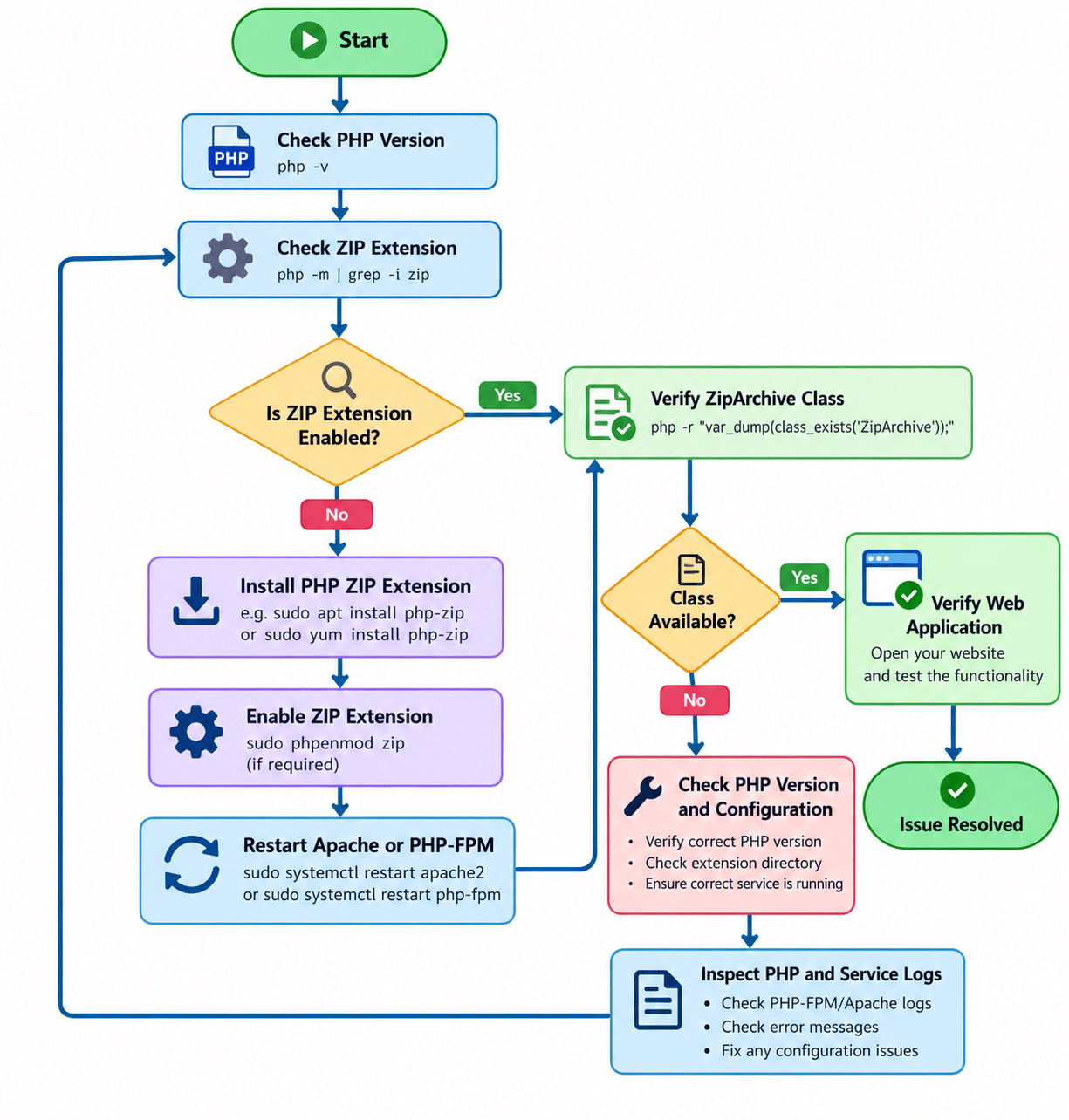
PHP ZipArchive Installation Flowchart
The following flowchart explains the process of identifying and fixing the ZipArchive class not found error.
Conclusion
The PHP Fatal error: Class ‘ZipArchive’ not found error generally occurs when the PHP ZIP extension is missing, disabled, or not loaded by the PHP environment used by the application.
Installing the appropriate ZIP package, enabling the extension, and restarting the relevant Apache or PHP-FPM service will resolve the issue in most cases.
If you are running multiple PHP versions, always make sure the extension is installed for the correct PHP version. Finally, verify the installation using php -m, php --ri zip, and class_exists('ZipArchive').
Regularly checking PHP extensions and server configurations helps prevent compatibility issues and keeps PHP applications running smoothly.
For assistance with PHP extension installation, server configuration, or PHP application troubleshooting, contact the technical team at Pheonix Solutions.
Frequently Asked Questions (FAQs)
1. What causes the PHP Fatal error: Class ‘ZipArchive’ not found?
This error usually occurs when the PHP ZIP extension is not installed, disabled, or unavailable in the PHP configuration used by your application. Installing and enabling the correct extension generally resolves the issue.
2. How do I check whether the PHP ZIP extension is installed?
Run the following command:
php -m | grep -i zip
If zip appears in the output, the extension is loaded in the CLI environment. You can also verify the ZipArchive class using:
php -r "var_dump(class_exists('ZipArchive'));"
3. Do I need to restart Apache or PHP-FPM after installing the PHP ZIP extension?
Yes. Restart the relevant PHP service to load the newly installed extension. If you use Apache with mod_php, restart Apache. If your application uses PHP-FPM, restart the corresponding PHP-FPM service. Nginx generally does not require a restart for PHP extension installation.
Related Articles
Need Help Installing and Configuring PHP ZIP Extension?
Need assistance with PHP ZIP extension installation, ZipArchive configuration, PHP version compatibility, or troubleshooting PHP errors? Our experts can help with PHP extension installation, Linux server administration, Apache and Nginx configuration, PHP-FPM management, and server maintenance.
Get in touch with our team here.