
Post Date: May 23, 2019
Last Updated: October 28, 2026
Introduction
The Document Object Model (DOM) is a programming interface that represents an HTML document as a tree of objects. When a web page loads in a browser, the browser creates a DOM representation of the document.
JavaScript uses the DOM to access HTML elements, change their content, modify attributes, and respond to user interactions. For example, you can change the text of a paragraph when a user clicks a button without reloading the entire web page.
In this article, we will explore the DOM and learn how to find and modify HTML elements using JavaScript.
Prerequisites
Before getting started, you should have:
- Basic knowledge of HTML.
- A basic understanding of JavaScript.
- A web browser to run and test the examples.
- A text editor or code editor.
Implementation
Step 1: Understand the Document Object Model
When an HTML document loads in a browser, its elements are represented as objects in a hierarchical structure called the DOM tree.
Consider the following HTML example:
<!DOCTYPE html>
<html lang="en">
<head>
    <title>Understanding DOM</title>
</head>
<body>
    <h1>Welcome</h1>
    <p>This is a sample paragraph.</p>
</body>
</html>
You can view the document object in the browser console using JavaScript:
console.log(document);
The document object represents the loaded web page and provides methods for accessing and manipulating its HTML elements.
Step 2: Find an HTML Element Using getElementById()
The getElementById() method selects an HTML element using its unique id attribute. It is useful when you want to modify a specific element on a web page.
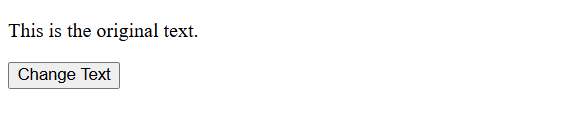
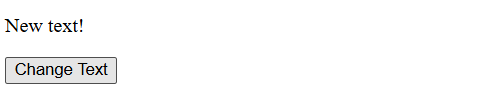
In the following example, clicking the button changes the paragraph text.
<!DOCTYPE html>
<html lang="en">
<head>
    <meta charset="UTF-8">
    <title>DOM getElementById Example</title>
</head>
<body>
    <p id="p1">This is the original text.</p>

<button onclick="myFunction()">Change Text</button>

<script>
    function myFunction() {
        document.getElementById("p1").textContent = "New text!";
    }
</script>

</body>
</html>
Explanation:
- The paragraph has the ID
p1. document.getElementById("p1")selects the paragraph.- The
textContentproperty changes the paragraph’s text. - When the button is clicked, the text changes to “New text!”
Output
Step 3: Find HTML Elements Using getElementsByTagName()
The getElementsByTagName() method selects HTML elements based on their tag name, such as p, h1, or button.
It returns a collection of matching elements. You can use the collection’s length property to find the number of matching elements.
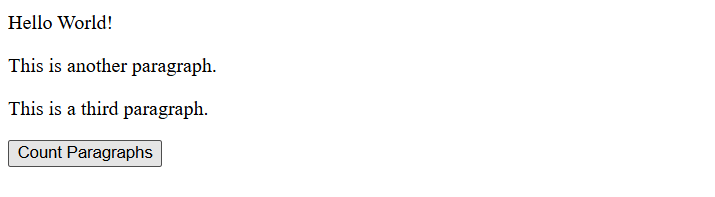
The following example counts the paragraph elements in the document.
<!DOCTYPE html>
<html lang="en">
<head>
    <meta charset="UTF-8">
    <title>DOM getElementsByTagName Example</title>
</head>
<body>
    <p>Hello World!</p>
    <p>This is another paragraph.</p>
    <p>This is a third paragraph.</p>

<button onclick="myFunction()">Count Paragraphs</button>

<p id="demo"></p>

<script>
    function myFunction() {
        var paragraphs = document.getElementsByTagName("p");

        document.getElementById("demo").textContent =
            "Number of paragraph elements: " + paragraphs.length;
    }
</script>

</body>
</html>
Explanation:
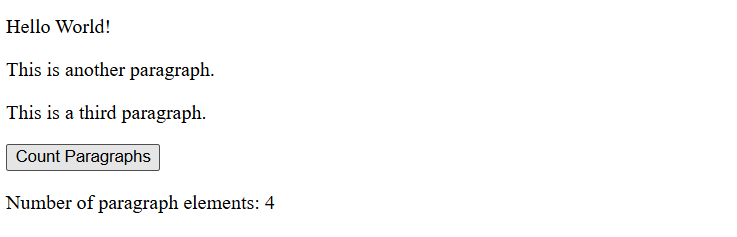
document.getElementsByTagName("p")selects all paragraph elements.paragraphs.lengthreturns the number of matching elements.document.getElementById("demo")selects the element where the result will be displayed.- When you click the button, the number of paragraph elements is displayed.
The result is 4 because the page contains three original paragraphs and the paragraph used to display the result.
Output
Step 4: Find HTML Elements Using getElementsByClassName()
The getElementsByClassName() method selects elements using their class name. It returns a collection containing all matching elements.
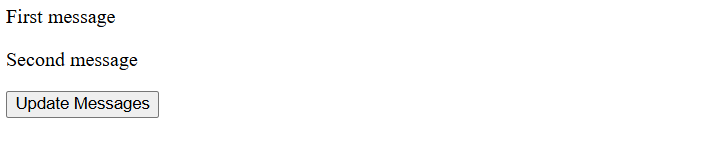
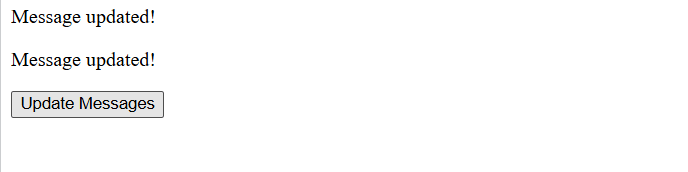
In this example, JavaScript selects all elements with the class name message and updates their text.
<html lang="en">
<head>
    <meta charset="UTF-8">
    <title>DOM getElementsByClassName Example</title>
</head>
<body>
    <p class="message">First message</p>
    <p class="message">Second message</p>

<button onclick="updateMessages()">Update Messages</button>

<script>
    function updateMessages() {
        var messages = document.getElementsByClassName("message");

        for (var i = 0; i < messages.length; i++) {
            messages[i].textContent = "Message updated!";
        }
    }
</script>

</body>
</html>
Explanation:
document.getElementsByClassName("message")selects elements with the specified class.- The
forloop iterates through the matching elements. messages[i].textContentUpdates the text of each element.
When you click the button, both messages change to “Message updated!”
Output
Step 5: Modify DOM Content Using JavaScript
JavaScript can dynamically change the content of an HTML element through the DOM. The following example demonstrates how to update a heading when a user clicks a button.
<!DOCTYPE html>
<html lang="en">
<head>
    <meta charset="UTF-8">
    <meta name="viewport" content="width=device-width, initial-scale=1.0">
    <title>Modify DOM Content</title>
</head>
<body>
    <h2 id="heading">Original Heading</h2>

<button onclick="updateHeading()">Update Heading</button>

<script>
    function updateHeading() {
        var heading = document.getElementById("heading");
        heading.textContent = "Updated Heading";
    }
</script>

</body>
</html>
Explanation:
document.getElementById("heading")selects the heading element.heading.textContentchanges the heading’s displayed text.- Clicking the button changes “Original Heading” to “Updated Heading”.
Save the complete code as index.html and open it in a web browser to test the example.
Output


Conclusion
The Document Object Model enables JavaScript to interact with HTML documents dynamically. It allows developers to find elements, update text, and create interactive web pages.
The key methods covered in this article are getElementById(), getElementsByTagName(), and getElementsByClassName(). The textContent property can then be used to read or update an element’s text.
Understanding these DOM methods provides an important foundation for JavaScript development and interactive web applications.
FAQ
1. What is the Document Object Model in JavaScript?
The DOM is a programming interface that represents an HTML document as a tree of objects. JavaScript uses it to access and modify elements on a web page.
2. What is the difference between getElementById() and getElementsByTagName()?
getElementById() returns a single matching element or null if no element is found. getElementsByTagName() returns a collection of elements matching the specified tag name.
3. Can JavaScript change HTML content using the DOM?
Yes. JavaScript can change element text, attributes, and other properties using DOM methods and properties such as textContent.
Related Links
Official Links
- MDN Web Docs: Document Object Model (DOM)
- MDN Web Docs:
getElementById() - MDN Web Docs:
getElementsByTagName() - MDN Web Docs:
getElementsByClassName()
Talk to Our Experts
Looking for a technology partner for your development or IT requirements? Our team can help you explore suitable solutions for your business.
Contact our experts: https://pheonixsolutions.com/contact