
Post Date: May 30, 2019
Last Updated: October 29, 2026
Introduction
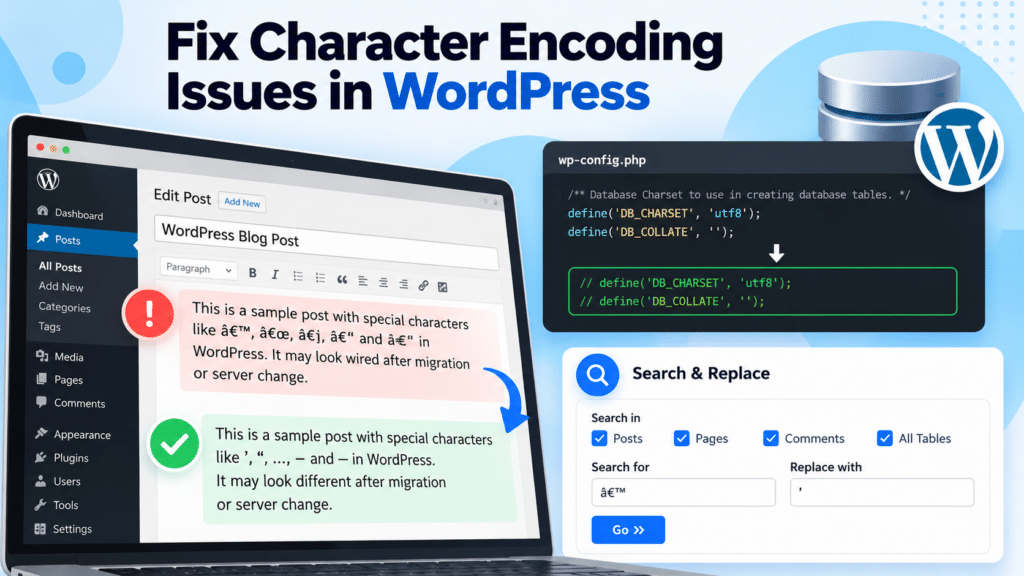
A WordPress character encoding issue can cause unusual symbols and incorrectly displayed characters to appear in blog posts, especially after migrating a website to a new hosting account or server.
This problem may occur when the character encoding used to store content in the database does not match the encoding used to read or display it.
In this article, we’ll explore two approaches to troubleshoot WordPress character encoding issues by reviewing database settings and using a search-and-replace tool to correct affected text.
Common Character Encoding Issues
You may notice special characters such as the following in your WordPress posts:
Â, ’, “, â€, …, –, —, ÷, and Ï€.
These characters may appear when text is decoded using an incorrect character encoding.
How to Fix a WordPress Character Encoding Issue
Solution 1: Check the Database Character Settings in wp-config.php
The wp-config.php file contains important configuration settings for your WordPress website, including database connection details and character set settings.
Step 1: Open the wp-config.php File
Access your WordPress files through your hosting control panel’s File Manager or using an appropriate SFTP connection.
Locate the wp-config.php file in your WordPress installation directory and create a backup before making any changes.
Step 2: Locate the Database Character Settings
Open the file and look for the following lines:
define('DB_CHARSET', 'utf8');
define('DB_COLLATE', '');
These constants specify the database character set and collation settings used by WordPress.
Step 3: Review the Configuration
The original article suggests commenting out these two lines as a possible workaround:
// define('DB_CHARSET', 'utf8');
// define('DB_COLLATE', '');
Important: Commenting out these settings is not a universal fix for character encoding problems. It changes WordPress’s database configuration behavior but does not automatically convert existing database content or repair incorrectly encoded text.
Before applying this workaround, back up your database and confirm the actual character set and collation used by your database tables. Avoid changing a working configuration without testing the result.
Solution 2: Use a Search and Replace Plugin
If only specific characters or phrases are displaying incorrectly, a search-and-replace tool may help replace the affected text.
However, this approach is appropriate only when you know what the incorrect text should be. It does not repair every possible database encoding mismatch.
Step 1: Back Up Your WordPress Website
Before making bulk changes, create a backup of your WordPress database and website files. Test the procedure on a staging copy if possible.
Step 2: Install a Search and Replace Plugin
Choose a compatible and maintained search-and-replace plugin from the official WordPress plugin directory.
The original article referenced the Search and Replace plugin. Check its current availability and compatibility before using it.
Step 3: Open the Search and Replace Tool
After installing and activating a suitable plugin, open its settings. Depending on the plugin, the tool may be available under Tools → Search & Replace.
Select the database tables or content areas you need to examine. Choose all tables only if you understand the scope of the changes and have a verified backup.
Step 4: Search for the Incorrect Characters
In the Search for field, enter the incorrectly displayed text you want to find.
In the Replace with field, enter the correct text.
For example, if a particular word or punctuation mark is stored incorrectly, search for that exact sequence and specify its intended replacement.

Step 5: Review and Apply the Changes
If the plugin provides a dry-run or preview option, use it first to review the affected records. Confirm that the replacements are correct before applying them to the live database.
Avoid replacing individual character sequences indiscriminately across all tables, as this could damage valid content or serialized WordPress data.
Conclusion
Character encoding problems in WordPress can cause unusual symbols and unreadable text to appear after a website migration.
To address the issue, review the database character settings in wp-config.php and verify the database’s actual character set and collation. If only specific content is affected, a search-and-replace tool may help correct known incorrect text.
Always back up your database before changing configuration settings or performing bulk replacements. The appropriate solution depends on whether the problem originates from the database configuration, the stored content, or the way the content is decoded.
FAQ
1. Why are special characters appearing in my WordPress posts?
This may happen when text is stored or decoded using incompatible character encodings. Database settings, migration processes, or incorrectly encoded content can contribute to the issue.
2. Will commenting out DB_CHARSET and DB_COLLATE always fix the problem?
No. This workaround may change how WordPress determines database settings, but it does not convert existing data or repair every encoding mismatch. Verify your database configuration before using it.
3. Can a Search and Replace plugin fix incorrectly displayed characters?
It can help when the incorrect text and its intended replacement are known. It will not automatically resolve every underlying encoding issue, so back up the database and review changes before applying them.
Related Links
- Steps to Reset the WordPress Admin Login in the Database
- Post an Article on a WordPress Site Through MS Word 2007
Official Links
Talk to Our Experts
Need help troubleshooting WordPress migration issues, database configuration, or website hosting? Our team can help you investigate the problem and identify a suitable solution.
Contact our experts: here