
Post Date: May 30, 2019
Last Updated: October 24, 2026
Introduction
Install Node.js in Ubuntu using the NodeSource repository to get a current Node.js release on a supported Ubuntu system. Node.js is an open-source, cross-platform JavaScript runtime that runs JavaScript outside the browser. It’s commonly used for web servers, APIs, and command-line tools.
This guide updates an older tutorial that installed Node.js 12 on Ubuntu 16.04. It removes an obsolete prerequisite, avoids piping the NodeSource setup script directly into a root shell, and lets you choose the Node.js version you want.
Note: Ubuntu 16.04 is end-of-life, and it can’t run current Node.js releases. Recent Node.js versions require a newer C library (glibc 2.28 or later) than Ubuntu 16.04 and 18.04 provide, and NodeSource’s current instructions list only Ubuntu 18.04 and later. To install Node.js in Ubuntu 16.04 today, you would be limited to old, unsupported Node.js versions. If you can, move to a supported Ubuntu LTS release first. The steps below work on those.
Prerequisites
Before you install Node.js in Ubuntu, make sure you have:
- A supported Ubuntu LTS release (see the note above)
- Root or sudo access
- An internet connection
- The Node.js version you want. Check the Node.js release schedule and choose an LTS version for production
Architecture
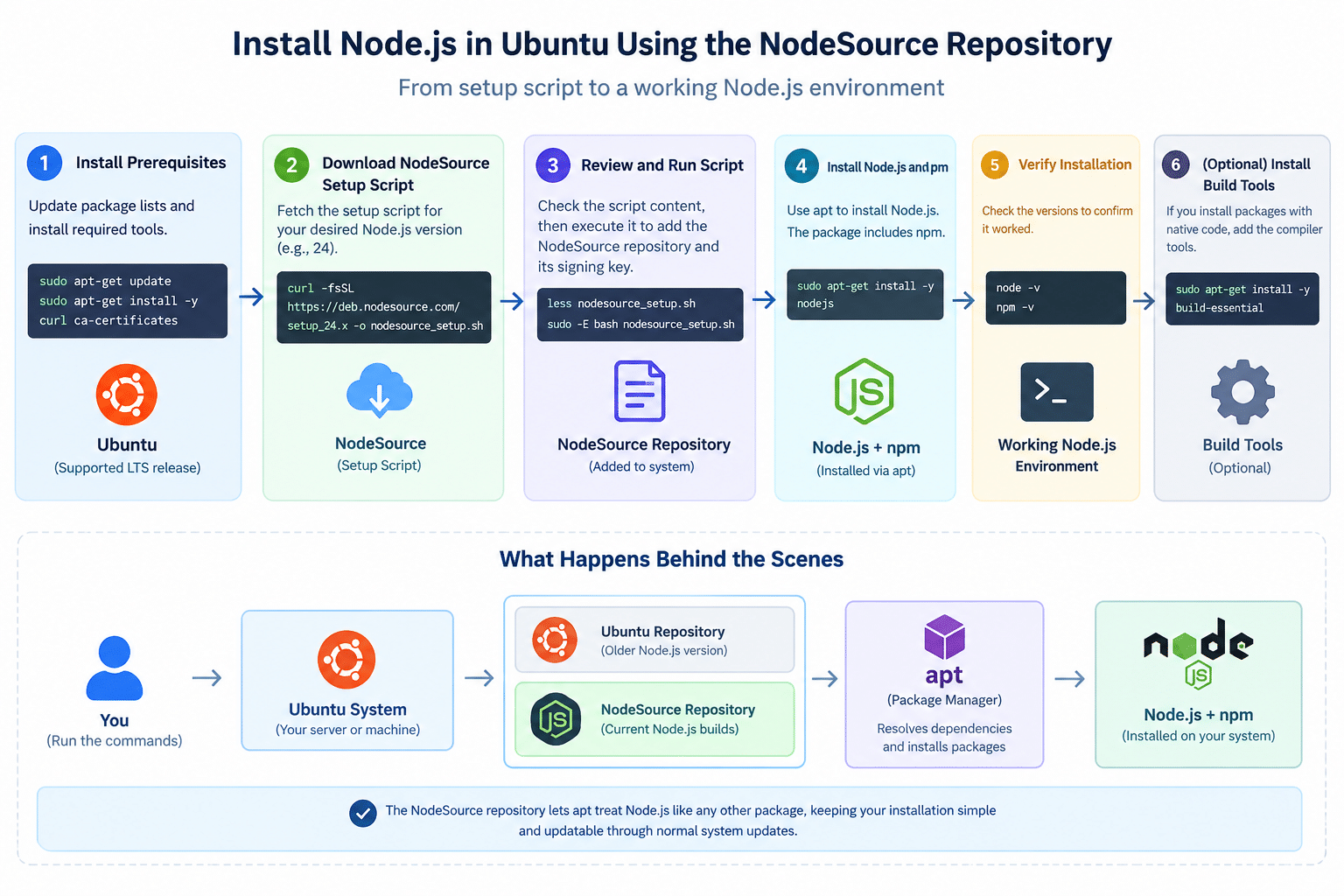
- Ubuntu’s own repositories carry an old Node.js version, so you add a second package source. The NodeSource repository provides current Node.js builds packaged for
apt - A small setup script adds the NodeSource repository and its signing key to your system
- After that,
apttreats Node.js like any other package. It installsnodejs, which includesnpm, and can update it later through normal system updates
The image below shows what happens when you install Node.js in Ubuntu with this method. For NodeSource’s own documentation, see its distributions repository.
Steps to Install Node.js in Ubuntu
1. Install the Prerequisites
sudo apt-get update
sudo apt-get install -y curl ca-certificates
Note: The original also installed
python-software-properties. That package is obsolete, and it no longer exists on current Ubuntu releases, so the command would fail there. You don’t need it to add the NodeSource repository.
2. Download the NodeSource Repository Setup Script
Replace <VERSION> with the major version you chose, for example 24 for Node.js 24:
curl -fsSL https://deb.nodesource.com/setup_<VERSION>.x -o nodesource_setup.sh
Note: The original used
setup_12.x. Node.js 12 reached end-of-life in April 2022. A fixed version in a guide goes stale quickly, so always pick the version yourself.
3. Review and Run the Script
The original piped the download straight into sudo bash, which runs whatever the server returns as root without you seeing it. Look at the script first:
less nodesource_setup.sh
Then run it:
sudo -E bash nodesource_setup.sh
This adds the NodeSource repository and its signing key to your system.
4. Install Node.js and npm
Now you can install Node.js in Ubuntu with a normal apt command:
sudo apt-get install -y nodejs
The nodejs package from NodeSource also includes npm.
5. Check Node.js Version and npm
node -v
npm -v
These commands check Node.js version and confirm npm is present. Each prints a version number if the install worked. The node -v output should match the major version you chose in Step 2.
6. Install Build Tools (Optional)
Some npm packages compile native code when you install them. If you hit build errors later, install the compiler tools:
sudo apt-get install -y build-essential
Alternative: Install Node.js in Ubuntu with nvm
If you need several Node.js versions side by side, or you don’t want a system-wide install, use nvm (Node Version Manager). It installs Node.js into your own home directory, so it doesn’t need root access and you can switch versions with a command. Follow the install instructions on its GitHub page, since the install command changes with each nvm release.
Troubleshooting
If you can’t install Node.js in Ubuntu cleanly, check these:
GLIBC_2.28 not foundwhen you runnode: your Ubuntu release is too old for that Node.js version. Upgrade Ubuntu, which is the real fixE: Unable to locate package nodejs: the setup script didn’t finish, or your Ubuntu release isn’t supported. Re-run Step 3, then runsudo apt-get updatePackage python-software-properties is not available: you’re following an old command. Skip that package, as shown in Step 1- An old version shows up after installing: Ubuntu’s own
nodejspackage may be taking priority. Check which versionaptwill install withapt-cache policy nodejs, and remove the old package withsudo apt-get remove nodejsbefore installing the new one
Conclusion
To install Node.js in Ubuntu, download the NodeSource setup script for the version you want, read it before running it, then install nodejs with apt and check Node.js version with node -v. Skip the obsolete python-software-properties package and the fixed Node.js 12 version from the original guide. Most importantly, run this on a supported Ubuntu release, because Ubuntu 16.04 can’t run current Node.js versions.
Frequently Asked Questions
Can I install Node.js in Ubuntu 16.04? Only older Node.js versions will run, and those are end-of-life. Current releases need a newer glibc than Ubuntu 16.04 provides. Upgrading Ubuntu is the better route.
Does the NodeSource nodejs package include npm? Yes. Installing nodejs from NodeSource also installs npm, so you don’t need a separate install step.
Which Node.js version should I choose? For production, pick a current LTS release, since those receive security fixes for longer. Check the release schedule before you decide.
Should I use NodeSource or nvm to install Node.js in Ubuntu? Use NodeSource for a system-wide install on a server, where updates come through apt. Use nvm when you need several versions or want to avoid root.
Related Articles
Talk to Our Technology Experts
Building or deploying Node.js applications? Our team can help with Node.js development, server setup, deployment pipelines, and ongoing DevOps support.