
Post Date: May 30, 2019
Last Updated: October 30, 2026
Introduction
jQuery is a JavaScript library that simplifies HTML document manipulation, event handling, animations, and other JavaScript operations. It provides simple methods to perform common tasks with less code.
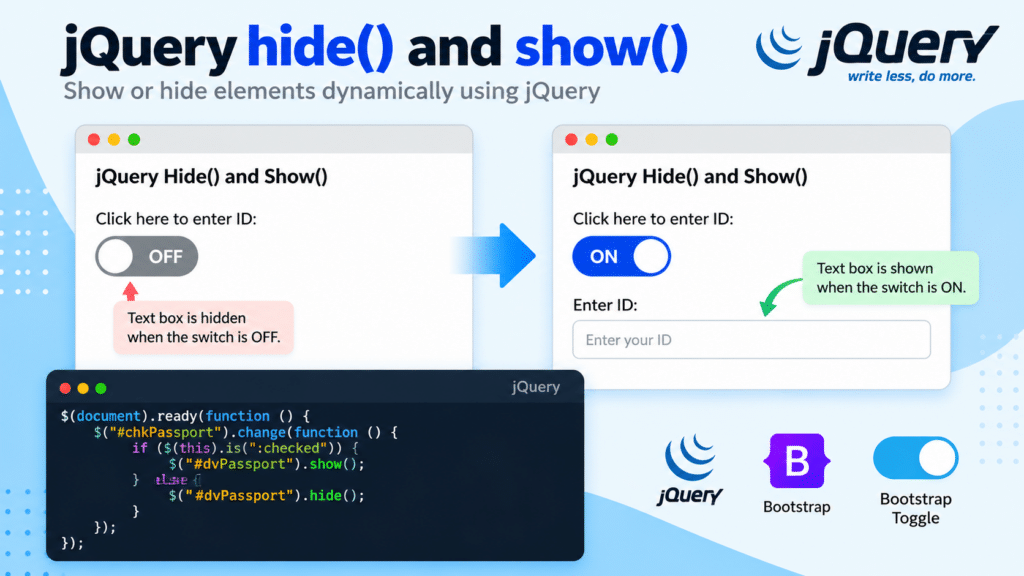
The jQuery hide() and show() methods are used to hide and display HTML elements dynamically.
For example, you can display an input field when a user switches a toggle button ON and hide it when the toggle button is switched OFF.
In this tutorial, we will learn how to implement the jQuery hide() and show() methods using a Bootstrap toggle switch.
Prerequisites
Before getting started, you should have:
- Basic knowledge of HTML.
- Basic understanding of JavaScript and jQuery.
- Familiarity with Bootstrap.
- A web browser to test the example.
jQuery Events
jQuery allows developers to execute JavaScript code in response to user interactions, such as clicking a button, moving the mouse over an element, or changing an input value.
For example, the change() event listens for changes in an input element. We can use this event to check whether a toggle switch is ON or OFF and display or hide another element accordingly.
Implementation
Step 1: Include the Required Libraries
First, include the required Bootstrap CSS, jQuery library, Bootstrap JavaScript, and Bootstrap Toggle CSS and JavaScript files.
These libraries are used to create the toggle switch and handle its functionality.
Step 2: Create the HTML Structure
Create a checkbox using the Bootstrap Toggle attributes. Add a separate div element containing the input field that needs to be displayed or hidden.
Step 3: Implement the jQuery hide() and show() methods.
Use the jQuery change() event to detect the toggle switch state.
- When the switch is ON, the
show()method displays the input field. - When the switch is OFF, the
hide()method hides the input field.
The following is the complete working HTML example.
<!DOCTYPE html>
<html lang="en">
<head>
    <meta charset="UTF-8">
    <meta name="viewport" content="width=device-width, initial-scale=1">

    <title>jQuery Hide and Show Example</title>

    <!-- Bootstrap CSS -->
    <link rel="stylesheet"
          href="https://maxcdn.bootstrapcdn.com/bootstrap/3.4.0/css/bootstrap.min.css">

    <!-- Bootstrap Toggle CSS -->
    <link rel="stylesheet"
          href="https://gitcdn.github.io/bootstrap-toggle/2.2.2/css/bootstrap-toggle.min.css">
</head>

<body>

    <div class="container">
        <h5><b>jQuery Hide() and Show()</b></h5>

        <div class="row">
            <div class="col-xs-12">

                <p>Click here to enter ID:</p>

                <!-- Toggle Switch -->
                <input type="checkbox"
                       id="chkPassport"
                       data-toggle="toggle"
                       data-on="ON"
                       data-off="OFF">

                <!-- Input Field -->
                <div id="dvPassport" style="display: none; margin-top: 15px;">
                    <label for="passportId">Enter ID:</label>
                    <input type="text"
                           id="passportId"
                           class="form-control"
                           placeholder="Enter your ID">
                </div>

            </div>
        </div>
    </div>

    <!-- jQuery -->
    <script src="https://ajax.googleapis.com/ajax/libs/jquery/3.4.0/jquery.min.js"></script>

    <!-- Bootstrap JavaScript -->
    <script src="https://maxcdn.bootstrapcdn.com/bootstrap/3.4.0/js/bootstrap.min.js"></script>

    <!-- Bootstrap Toggle JavaScript -->
    <script src="https://gitcdn.github.io/bootstrap-toggle/2.2.2/js/bootstrap-toggle.min.js"></script>

    <!-- jQuery Hide and Show Functionality -->
    <script>
        $(document).ready(function () {

            $("#chkPassport").change(function () {

                if ($(this).is(":checked")) {
                    $("#dvPassport").show();
                } else {
                    $("#dvPassport").hide();
                }

            });

        });
    </script>

</body>
</html>
Step 4: Test the Functionality
Save the code as index.html and open it in your web browser.
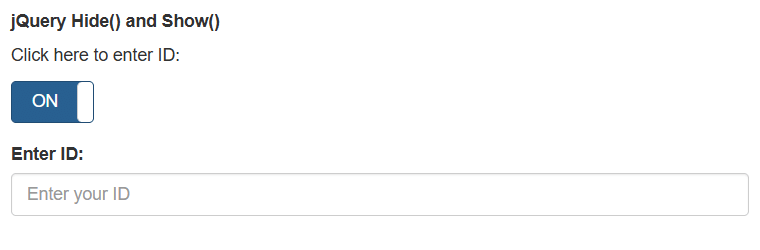
When the toggle switch is turned ON, the ID input field will appear. When the switch is turned OFF, the input field will disappear.

Conclusion
The jQuery hide() and show() methods make it easy to control the visibility of HTML elements based on user interactions.
By combining the jQuery change() event with a Bootstrap Toggle switch, we can dynamically display or hide input fields without reloading the web page.
These methods are useful when creating interactive forms, conditional input fields, and dynamic user interfaces.
FAQ
1. What is the difference between jQuery hide() and show()?
The hide() method hides the selected HTML element, while the show() method makes the hidden element visible.
2. How can I show an input field when a checkbox is selected?
You can use the jQuery change() event to check whether the checkbox is selected. If it is checked, use show(); otherwise, use hide().
3. Can jQuery hide() and show() methods be used with Bootstrap?
Yes. jQuery hide() and show() methods can be used with Bootstrap components to control the visibility of elements based on user interactions.
Related Links
- Dynamic Column Header Result Using AJAX Call in jQuery DataTable
- Selected Text Drop List Select Box Using jQuery
Official Links
- jQuery Official Website
- jQuery API Documentation – hide()
- jQuery API Documentation – show()
- jQuery API Documentation – change()
- Bootstrap Toggle Documentation
Talk to Our Experts
Looking for help with web development, JavaScript, jQuery, or interactive website solutions? Our team can help you identify the right technology and build effective solutions for your business.
Contact our experts: Click here.