
Post Date: October 10, 2019
Last Updated: November 01, 2026
Introduction
Websites hosted on a Plesk server may become inaccessible and display a 504 Gateway Timeout error when the Apache web server takes too long to receive a response from the PHP backend.
This issue can occur when PHP scripts take longer than the configured timeout limits, PHP-FPM processes become overloaded, or the backend application is unable to respond within the expected time.
One common error found in the Apache error log is:
[proxy_fcgi:error] [pid 46670:tid 45342478964134]
(10009)The timeout specified has expired:
[client 0.0.0.0:54] AH01095: Error dispatching request
In this guide, we will explain how to troubleshoot the 504 Gateway Timeout issue on a Plesk server and adjust the Apache FastCGI timeout settings based on the PHP handler being used.
Prerequisites
Before making any configuration changes, make sure you have:
- Root SSH access to the Plesk server.
- Administrator access to the Plesk control panel.
- Basic knowledge of Apache and PHP configuration.
- Access to Apache and PHP-FPM log files.
- A backup of the existing Apache configuration files.
Note: The configuration paths and directives may differ depending on the operating system and PHP handler configured in Plesk.
Architecture – How the 504 Gateway Timeout Occurs
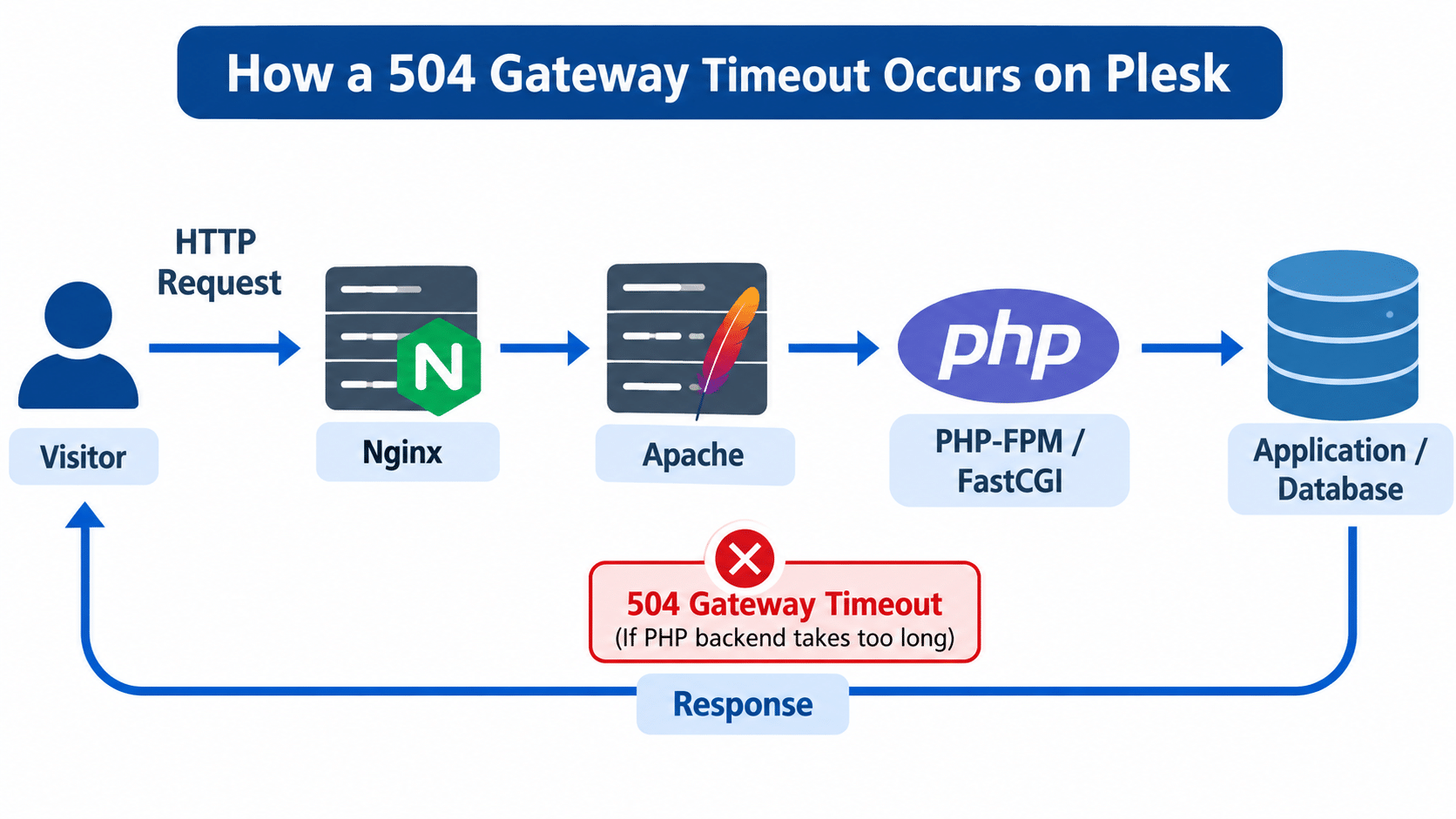
When a visitor accesses a website hosted on a Plesk server, the request generally follows this workflow:
- The visitor sends an HTTP request to the website.
- Nginx receives the request and forwards it to Apache, depending on the Plesk web server configuration.
- Apache forwards PHP requests to the configured PHP handler, such as PHP-FPM or FastCGI.
- The PHP backend executes the requested application code and returns a response.
- Apache sends the response back through Nginx to the visitor.
If the PHP backend does not respond within the configured timeout period, Apache may terminate the request and return a 504 Gateway Timeout error.
Common causes include:
- PHP scripts taking longer than the configured timeout.
- PHP-FPM processes being overloaded.
- Slow database queries or external API requests.
- Insufficient server resources.
- FastCGI or proxy timeout limits being too low.
Steps to Fix the 504 Gateway Timeout Error on a Plesk Server
1. Check the Website Error
First, access the affected website in a browser.
If the website displays the following error, the request may be timing out while communicating with the PHP backend.
504 Gateway Time-out
2. Check the Apache Error Logs
Connect to the Plesk server through SSH and inspect the Apache error log.
For CentOS/RHEL:
tail -f /var/log/httpd/error_log
For Debian/Ubuntu:
tail -f /var/log/apache2/error.log
Look for errors similar to the following:
[proxy_fcgi:error] [pid 46670:tid 45342478964134]
(10009)The timeout specified has expired:
[client 0.0.0.0:54] AH01095: Error dispatching request
This indicates that Apache encountered a timeout while dispatching the request to the backend.
Note: Check the PHP-FPM logs and server resource utilization as well to identify whether the issue is caused by slow PHP execution or backend resource exhaustion.
3. Identify the PHP Handler
Before changing the timeout values, identify which PHP handler is configured for the affected domain.
Log in to Plesk and navigate to:
Websites & Domains → PHP Settings
Check the selected PHP handler, such as:
- PHP-FPM served by Apache.
- PHP-FPM served by Nginx.
- FastCGI application served by Apache.
The timeout configuration depends on the selected handler. The following steps cover the Apache FastCGI and PHP-FPM proxy configurations.
4. Increase Apache FastCGI Timeout Limits
If the website uses the Apache mod_fcgid handler, increasing the FastCGI timeout limits can help resolve requests that require additional execution time.
Server-wide Fix – For all domains in Plesk
Step 1: Connect to the server using SSH.
Step 2: Open the FastCGI configuration file.
For CentOS/RHEL:
vi /etc/httpd/conf.d/fcgid.conf
For Debian/Ubuntu:
vi /etc/apache2/mods-enabled/fcgid.conf
Step 3: Add or update the following timeout directives:
FcgidIdleTimeout 600
FcgidProcessLifeTime 600
FcgidConnectTimeout 600
FcgidIOTimeout 600
These directives configure the FastCGI process idle time, process lifetime, connection timeout, and I/O timeout.
Important: These directives apply to mod_fcgid. They do not configure PHP-FPM requests handled through mod_proxy_fcgi.
5. Increase Apache Proxy Timeout for PHP-FPM
If the website uses PHP-FPM through Apache’s mod_proxy_fcgi, configure the Apache proxy timeout instead.
For CentOS/RHEL:
Create a custom Apache configuration file:
vi /etc/httpd/conf.d/00-proxy_timeout.conf
For Debian/Ubuntu:
Create a configuration file:
vi /etc/apache2/conf-available/00-proxy_timeout.conf
Add the following directives:
Timeout 600
ProxyTimeout 600
Here:
Timeout 600increases Apache’s general timeout.ProxyTimeout 600increases the timeout for proxied backend requests.
For Debian/Ubuntu, enable the configuration if it is not automatically included:
a2enconf 00-proxy_timeout
Note: These are server-wide settings and may affect all domains using the corresponding Apache configuration. If you need to change the timeout for only one domain, use the appropriate Plesk-supported custom Apache configuration.
“Refer to the official Apache mod_proxy documentation to learn more about configuring proxy timeout settings.
6. Test the Apache Configuration
After making the changes, validate the Apache configuration before restarting the service.
Run:
apachectl configtest
Expected output:
Syntax OK
If Apache reports any syntax errors, correct them before proceeding.
7. Restart Apache
Once the configuration test succeeds, restart Apache to apply the changes.
For CentOS/RHEL:
systemctl restart httpd
For Debian/Ubuntu:
systemctl restart apache2
Note: Restarting Apache may briefly interrupt active website connections. Perform this change during a suitable maintenance window on production servers.
8. Verify Website Accessibility
After restarting Apache, access the affected website again.
You can also test the website using:
curl -I https://example.com
Check the response status.
Expected output:
HTTP/2 200
The website should now respond without the previous 504 Gateway Timeout error.
If the issue persists, inspect the Apache and PHP-FPM logs again to identify whether the backend is still timing out.
Troubleshooting
If the 504 Gateway Timeout error continues after increasing the timeout values, check the following:
1. PHP-FPM Processes Are Exhausted
If all available PHP-FPM workers are busy, new requests may remain queued or fail to complete within the timeout period.
Check the PHP-FPM logs and review the pool configuration, particularly pm.max_children.
2. Slow PHP Execution
A PHP script may take longer than expected due to inefficient application code, large data processing, or external API requests.
Enable appropriate PHP error logging and investigate slow application requests.
3. Database Queries Taking Too Long
Slow MySQL/MariaDB queries can delay PHP execution.
Check the database slow query log and investigate queries that consume excessive execution time.
4. Insufficient Server Resources
High CPU usage, memory exhaustion, or disk I/O bottlenecks can affect PHP execution.
Check resource utilization using:
top
free -h
df -h
5. Incorrect Timeout Configuration
Make sure the timeout directives are configured for the actual PHP handler being used.
For example, FcgidIOTimeout applies to mod_fcgid, whereas ProxyTimeout applies to Apache proxy requests such as PHP-FPM through mod_proxy_fcgi.
Important: Increasing timeout values alone does not fix the underlying application or resource problem. Investigate the root cause before applying higher timeout limits permanently.
Conclusion
The 504 Gateway Timeout error on websites hosted on a Plesk server can occur when Apache does not receive a response from the PHP backend within the configured timeout period.
By identifying the PHP handler, reviewing Apache and PHP-FPM logs, and adjusting the appropriate FastCGI or proxy timeout settings, you can resolve timeout-related issues.
Always validate the Apache configuration before restarting the service and investigate the underlying application or server resource issues to prevent the problem from recurring.
Frequently Asked Questions
1. Why does my Plesk-hosted website show a 504 Gateway Timeout error?
A 504 Gateway Timeout error generally occurs when Apache or Nginx does not receive a timely response from the backend application. Slow PHP execution, overloaded PHP-FPM workers, and database delays are common causes.
2. What does AH01095 Error Dispatching Request mean?
AH01095 is an Apache proxy-related error that can occur when Apache encounters a problem dispatching a request to the backend. When accompanied by a timeout message, it indicates that the backend request did not complete within the configured time.
3. How do I increase the Apache timeout in Plesk?
You can increase the Apache timeout using the Timeout and ProxyTimeout directives when PHP-FPM is handled through Apache’s proxy module. For mod_fcgid, use the appropriate Fcgid timeout directives.
4. Will increasing Apache timeout values affect all websites on the server?
Yes. If you configure timeout directives in the global Apache configuration, they can affect all websites using that configuration. For domain-specific changes, use Plesk-supported custom Apache directives.
5. Is restarting Apache necessary after changing timeout settings?
Yes. Apache must reload or restart to apply changes to its configuration. Always run apachectl configtest before restarting the service.
Related Articles
How to Fix 502 Bad Gateway Errors on Websites Hosted on a Plesk Server
How to find default gateway in CentOs7 Minimal Server.
Talk to Our Technology Experts
Experiencing 504 Gateway Timeout errors or performance issues on your Plesk server?
Our team can help with Plesk server administration, Apache and Nginx configuration, PHP-FPM optimization, website performance troubleshooting, and ongoing server management.