
Post Date: August 14, 2019
Last Updated: October 29, 2026
Introduction
A 502 Bad Gateway error is a common issue on websites hosted on Plesk servers. It occurs when a gateway or reverse proxy, such as Nginx, receives an invalid response or fails to obtain a valid response from an upstream application server.
When this issue occurs frequently, websites may become temporarily unavailable, admin panels may fail to load, and users may experience interrupted sessions or failed requests.
One possible cause is insufficient Nginx buffer space for the response headers returned by the upstream server. This is particularly relevant when the Nginx error log contains the message:
upstream sent too big header while reading response header from upstream
In this guide, we will explain how to identify this issue, increase the appropriate Nginx buffer settings, apply the fix to individual domains or all domains hosted on a Plesk server, and verify that the changes resolve the problem.
1. Understanding the Root Cause
Nginx commonly acts as a reverse proxy in front of Apache or a PHP-FPM application. When a client sends a request, Nginx forwards it to the upstream service and processes the response before returning it to the client.
If the upstream response headers exceed the available buffer capacity, Nginx may be unable to process the response correctly and return a 502 Bad Gateway error.
Large response headers can result from:
- Applications generating large cookies or session headers.
- Authentication systems returning multiple cookies.
- Applications producing unusually large response headers.
- Proxy or FastCGI buffer settings that are too small for the application’s response.
Important: Not every 502 error is caused by insufficient buffers. Connection failures, PHP-FPM crashes, upstream timeouts, and application errors can also produce 502 responses. Confirm the cause in the logs before changing the configuration.
2. Identify the Error in Nginx Logs
Connect to the Plesk server using SSH and inspect the Nginx error log:
sudo tail -n 100 /var/log/nginx/error.log
To search specifically for upstream header and buffer errors:
sudo grep -iE \
'upstream sent too big header|502 Bad Gateway' \
/var/log/nginx/error.log | tail -n 50
Sample error log
[error] 13690#0: *244 upstream sent too big header while reading response header from upstream,
client: x.x.x.x,
server: subdomain.example.com,
request: "POST /admin_catalog.php HTTP/1.1",
upstream: "http://x.x.x.x/admin_catalog.php",
host: "subdomain.example.com",
referrer: "http://subdomain.example.com/admin_catalog.php"
What does this error mean?
upstream sent too big header— The upstream response headers exceed the available buffer capacity.server: subdomain.example.com— Identifies the affected domain.request: POST /admin_catalog.php— Shows the request that triggered the error.upstream— Identifies the backend that Nginx contacted.
If this message appears repeatedly for the affected domain, inspect the relevant proxy or FastCGI buffer configuration.
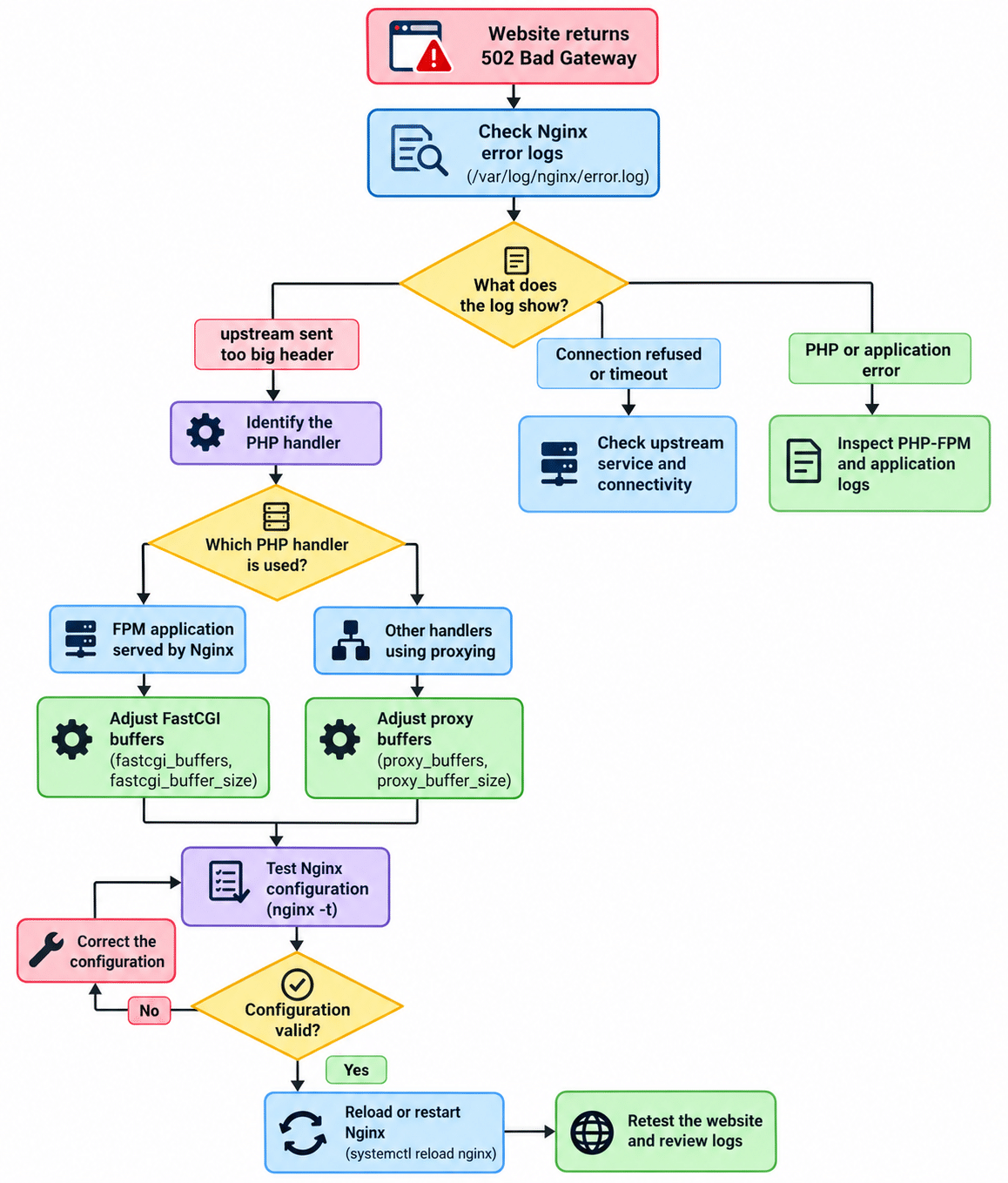
3. Troubleshooting Flowchart
The following flowchart outlines the recommended troubleshooting process.
4. Solution 1: Fix the Issue for One or Two Domains
If only one or two websites are affected, configure the buffer settings for the specific domains instead of changing the global configuration.
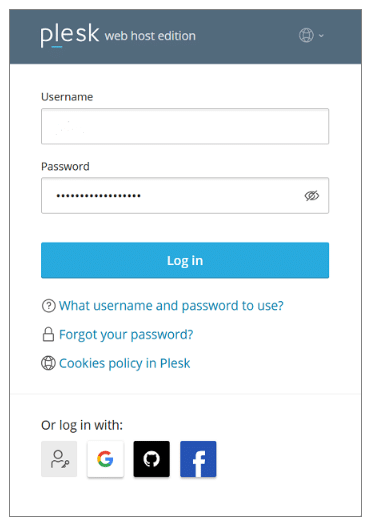
Step 1: Log in to Plesk
Access your Plesk control panel using your administrator account.
Step 2: Identify the PHP handler
Navigate to:
Domains → Select the affected domain → PHP Settings
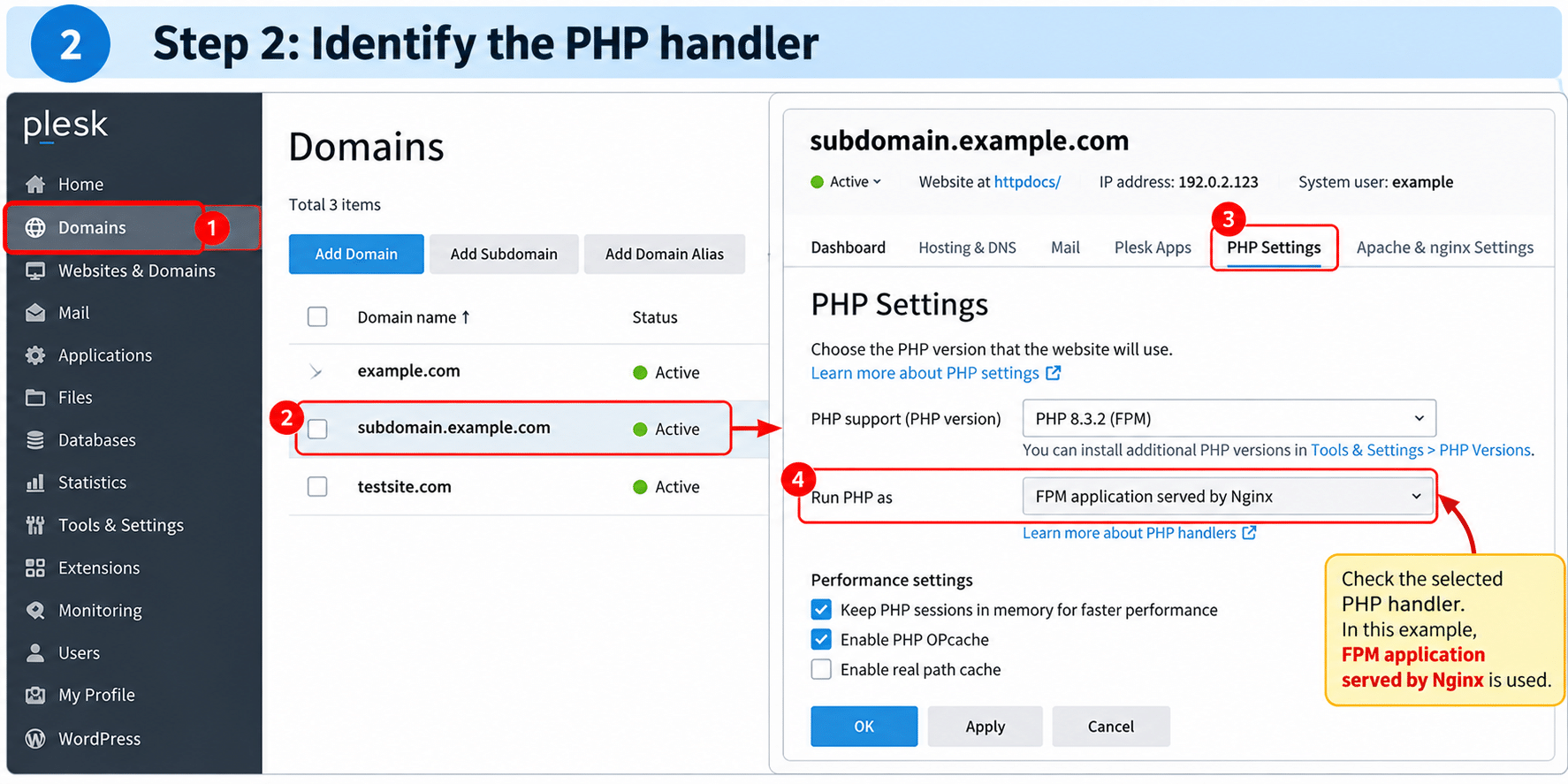
Check the selected PHP handler and determine whether PHP requests are handled directly by Nginx using FastCGI or through another proxy-based configuration.
Step 3: Open Apache & Nginx Settings
Navigate to:
Domains → Select the affected domain → Apache & nginx Settings
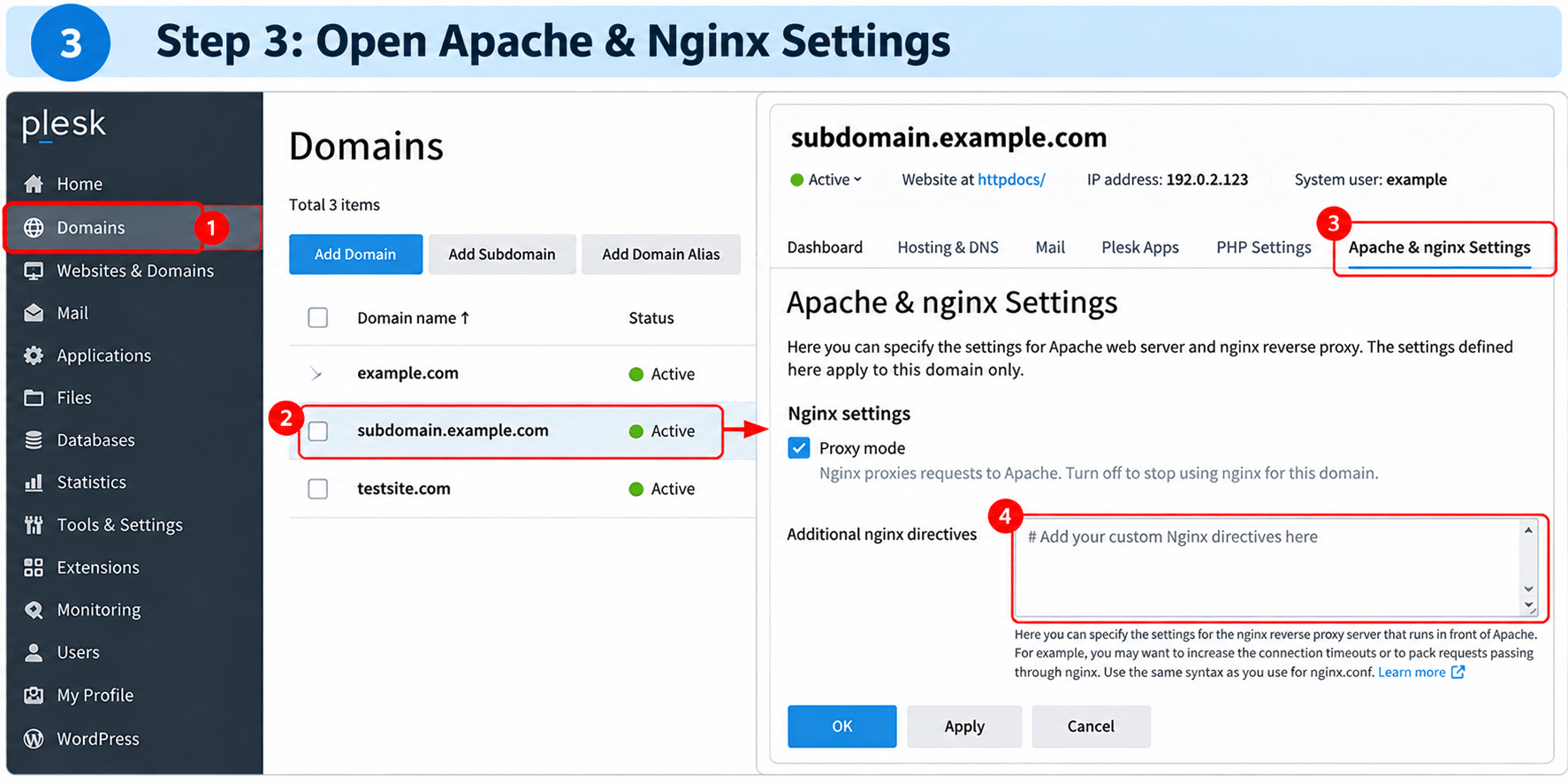
Locate the Additional nginx directives field.
Step 4: Add the appropriate buffer directives
Choose the configuration that matches the domain’s actual upstream handler.
Option A: FPM application served by Nginx
Use FastCGI buffer directives:
fastcgi_buffers 8 16k;
fastcgi_buffer_size 32k;
Option B: Other handlers using proxying
Use proxy buffer directives:
proxy_buffers 8 16k;
proxy_buffer_size 32k;
These settings increase the available buffer capacity for upstream response processing. If the issue persists, investigate the actual response header size and consider increasing the values carefully.
Note: Do not apply both configurations blindly. Use the directives appropriate to the request path and upstream handler. If a directive is rejected by Plesk or Nginx, review the generated configuration and the handler’s configuration context.
Step 5: Apply the changes
Save the configuration in Plesk. If necessary, use the panel’s supported configuration validation or reconfiguration mechanism to apply the changes.
Retest the affected website and check the Nginx error log for recurring header-buffer errors.
5. Solution 2: Apply Buffer Settings Globally
If several domains are affected and the same issue is confirmed across multiple websites, a global configuration change may be appropriate.
Warning: Global changes affect multiple hosted websites. Back up the configuration first, test the changes, and ensure the directives are valid in their intended context.
Step 1: Connect to the server
Log in to the Plesk server using SSH with an account that has administrative privileges.
Step 2: Back up the Nginx configuration
Create a backup of the main Nginx configuration file:
sudo cp -a /etc/nginx/nginx.conf \
  /etc/nginx/nginx.conf.backup
Step 3: Edit the configuration
Open the Nginx configuration file:
sudo nano /etc/nginx/nginx.conf
Locate the http { ... } section.
For requests that use proxy-based upstreams, add or adjust the following directives inside the http context:
proxy_buffers 8 16k;
proxy_buffer_size 32k;
For requests that use FastCGI upstreams, the corresponding directives are:
fastcgi_buffers 8 16k;
fastcgi_buffer_size 32k;
Add only directives supported by the relevant request paths and configuration contexts. If equivalent directives already exist in an included configuration file, review the existing values and inheritance rules before adding duplicates.
Plesk-specific consideration: Plesk generates and manages parts of the Nginx configuration. Direct edits to generated virtual-host configuration files may be overwritten. Use supported persistent configuration mechanisms and validate the resulting configuration before applying changes.
Step 4: Validate the configuration
Before reloading or restarting Nginx, run:
sudo nginx -t
A successful validation should report that the syntax is OK and the configuration test is successful.
If the test fails, do not reload Nginx. Correct the reported error first.
Step 5: Reload Nginx
If the configuration test succeeds, apply the changes:
sudo systemctl reload nginx
A reload is generally preferable because it applies configuration changes without unnecessarily stopping the service. If a reload is unsupported or fails, investigate the service error before considering a restart.
Check the service status:
sudo systemctl status nginx --no-pager
6. Verify That the Issue Is Resolved
After applying the changes, verify the website from both the client side and the server side.
Test the website response
curl -sS -o /dev/null \
  -w 'HTTP status: %{http_code}\n' \
  https://subdomain.example.com/
Replace subdomain.example.com with the affected domain.
A successful response will commonly return HTTP 200, although redirects such as 301 or 302 may also be expected depending on the website.
Check the Nginx error log again
sudo tail -f /var/log/nginx/error.log
Repeat the request that previously triggered the problem and check whether the same upstream header error appears.
If the error continues, inspect the PHP-FPM or upstream application logs and investigate the size of the response headers. Increasing buffer values further should be based on evidence rather than guesswork.
7. Common Mistakes to Avoid
- Changing the wrong buffer settings: FastCGI and proxy directives serve different upstream protocols.
- Editing generated Plesk files directly: Plesk may regenerate and overwrite these files.
- Restarting without validation: Always run
nginx -tbefore applying a configuration change. - Increasing buffers excessively: Larger buffers can increase memory usage, particularly under high concurrency.
- Ignoring other causes of 502 errors: Connection failures, PHP-FPM crashes, timeouts, and application errors require different fixes.
- Ignoring oversized application headers: Review large cookies and unnecessary response headers when they are the underlying cause.
8. Best Practices for Plesk Server Administrators
To reduce recurring 502 errors and maintain website availability:
- Monitor Nginx error logs and identify recurring upstream errors.
- Use domain-specific settings when the problem is limited to a small number of websites.
- Apply global configuration changes only when there is a demonstrated need.
- Back up configuration files before modifying them.
- Validate configuration changes using
nginx -t. - Verify website availability and review logs after applying changes.
- Review application cookies, session handling, and response headers if they are unusually large.
- Monitor memory usage and overall server performance after increasing buffer sizes.
Conclusion
A 502 Bad Gateway error on a Plesk-hosted website can have several causes. When the Nginx error log explicitly reports upstream sent too big header while reading response header from upstream, insufficient response-header buffer capacity is a likely cause.
The appropriate fix is to identify the upstream handler, adjust the relevant FastCGI or proxy buffer directives, validate the Nginx configuration, and reload the service safely.
For a small number of affected websites, domain-specific configuration is usually the more targeted approach. For widespread issues, a carefully tested global configuration may be suitable.
The key takeaway: Diagnose the error from the logs first, apply the smallest appropriate configuration change, and verify the result before considering the issue resolved.
Frequently Asked Questions (FAQs)
1. What causes a 502 Bad Gateway error on a Plesk server?
A 502 Bad Gateway error can occur when Nginx receives an invalid response from an upstream server. If the logs show upstream sent too big header, insufficient buffer capacity for the response headers may be the cause.
2. How can I fix the Nginx buffer issue in Plesk?
Navigate to Domains → Select Domain → Apache & nginx Settings → Additional nginx directives and configure the appropriate fastcgi_buffers or proxy_buffers directives based on the PHP handler.
3. Can I apply the buffer settings to all domains hosted on a Plesk server?
Yes. You can configure the settings globally in the appropriate Nginx configuration context. Back up the configuration, run nginx -t to validate it, and reload Nginx after successful validation.
Related Articles
How to install SQL management Studio on plesk server
Plesk internal server error with PHP CGI/FCGI
Need Help with Plesk Server Installation, Configuration, and Troubleshooting?
Need assistance with Plesk installation, server configuration, website hosting, domain management, SSL certificate setup, email configuration, or server performance issues? Our experts can help with Plesk administration, Apache and Nginx configuration, PHP and PHP-FPM optimization, database management, DNS configuration, security hardening, backup and recovery, website migration, and troubleshooting common server errors.
Whether you need help setting up a new Plesk server or maintaining an existing hosting environment, our team can help keep your websites secure, stable, and accessible.
Get in touch with our team here.