
Post Date: August 21, 2019
Last Updated: October 29, 2026
Introduction
This guide explains how to update WordPress automatically without being asked for FTP details. When WordPress can’t write to its own files, it stops and shows a screen like this when you try to update a plugin, theme, or core:
To perform the requested action, WordPress needs to access your web server.
Please enter your FTP credentials to proceed.
To update WordPress automatically, WordPress has to be able to write to its own folders. The WordPress FTP credentials prompt appears when it decides it can’t. The original guide suggested adding one line to wp-config.php, which can work, but it doesn’t fix the underlying problem and can leave you with “Could not create directory” errors instead. This version explains why the prompt appears and gives the safer fix first.
Prerequisites
Before you update WordPress automatically without FTP, make sure you have:
- Shell (SSH) access to the server, or a hosting control panel with a file manager
- Administrator access to your WordPress dashboard
- A recent backup, since you’ll be changing file ownership and permissions
Architecture
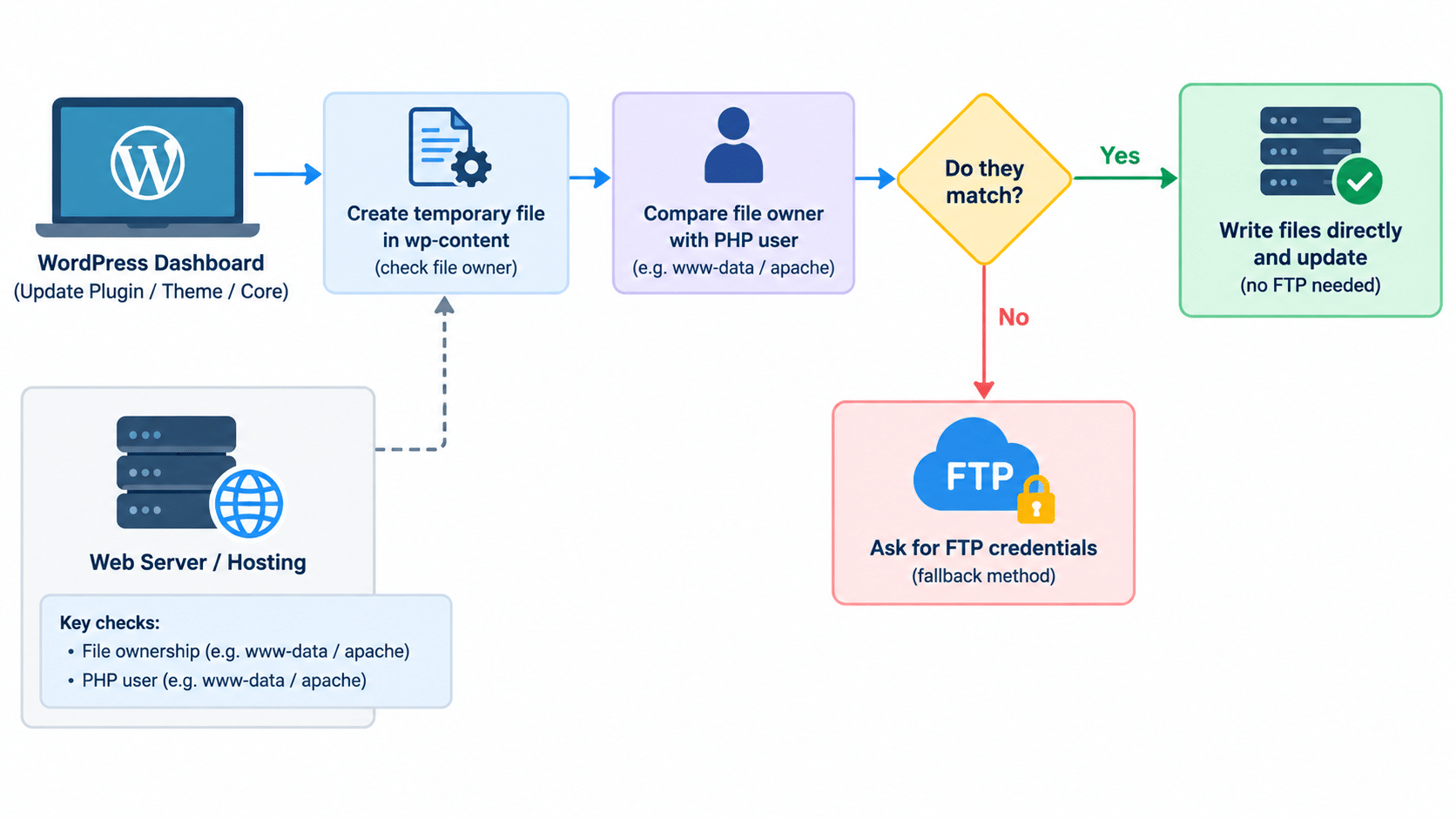
- When you start an update, WordPress creates a small temporary file in
wp-contentand checks who owns it - It compares that owner with the user PHP is running as, such as
www-dataorapache - If they match, WordPress writes files directly and updates straight away. If they don’t, it falls back to asking for the WordPress FTP credentials so it can write the files through an FTP login instead
The image below shows how the check works when you try to update WordPress automatically. See the WordPress wp-config.php documentation for the constants involved.
Steps to Update WordPress Automatically Without FTP
1. Find Out Who Owns the Files and Who PHP Runs As
Check who owns your WordPress folders (adjust the path to your site):
stat -c '%U:%G' /var/www/html/wp-content /var/www/html/wp-content/plugins
Then check which user your web server and PHP run as:
ps aux | grep -E 'apache2|httpd|nginx|php-fpm' | grep -v grep | head
If the file owner and the PHP user are different, that’s why WordPress asks for FTP credentials.
2. Fix the File Ownership
On a server you manage yourself, give the web server’s user ownership of the site. Use www-data on Debian and Ubuntu, or apache on CentOS and AlmaLinux:
sudo chown -R www-data:www-data /var/www/html
Note: On shared hosting, cPanel, or Plesk, PHP normally runs as your account’s own user, so you shouldn’t need to change ownership. If you still see the prompt there, files were probably uploaded or extracted as a different user. Ask your host to correct the ownership rather than changing it yourself.
3. Set Safe Permissions
Use WordPress’s recommended permissions, which are 755 for folders and 644 for files:
sudo find /var/www/html -type d -exec chmod 755 {} \;
sudo find /var/www/html -type f -exec chmod 644 {} \;
sudo chmod 600 /var/www/html/wp-config.php
Note: The original suggested changing the folder permission to 775 instead of 755. That only helps if the web server’s user belongs to the folder’s group, so on its own it often does nothing. Never use 777, which lets every user on the server write to your site.
4. Add FS_METHOD Only If WordPress Still Asks
If you fixed the ownership and WordPress still shows the FTP prompt, force the direct method. Open wp-config.php and add this line above the comment that says “That’s all, stop editing!”:
define( 'FS_METHOD', 'direct' );
This is the line that lets you update WordPress automatically when WordPress’s own detection gets it wrong. For example, it can happen when files are writable through group permissions but owned by a different user.
Notes:
- The original said to append the line at the end of the file. Constants should go above the “stop editing” line, before WordPress finishes loading its settings.
FS_METHODdoesn’t grant any permissions. It only tells WordPress to try writing directly. If PHP can’t actually write to the folders, you’ll get “Could not create directory” errors until Steps 2 and 3 are done properly.
5. Test an Update
In the dashboard, go to Dashboard → Updates (or Plugins) and update a plugin. It should complete without asking for any FTP details.
Troubleshooting
If you still can’t update WordPress automatically, check these:
- “Could not create directory” or “Installation failed”: PHP can’t write to the folder. Recheck ownership and permissions from Steps 1 to 3
- Updates are blocked entirely, with no prompt: look for
define( 'DISALLOW_FILE_MODS', true );inwp-config.php. That constant switches off all plugin, theme, and core changes from the dashboard - The prompt appears only for some folders: a subfolder, such as one inside
wp-content/plugins, is owned by a different user. Repeat thechownin Step 2 - You’d rather skip the dashboard: run updates with WP-CLI as the file owner’s user, for example
sudo -u www-data wp plugin update --all. No FTP prompt can appear
Conclusion
To update WordPress automatically without FTP, find out why WordPress thinks it can’t write to its files, fix the ownership and permissions (Steps 1 to 3), and add define( 'FS_METHOD', 'direct' ); only if the prompt remains. That fixes the cause, not just the symptom. Avoid 777 permissions and avoid storing FTP passwords in wp-config.php.
Frequently Asked Questions
Is it safe to update WordPress automatically with FS_METHOD set to direct? It’s fine as long as only the web server’s user can write to your site. The trade-off is that a compromised plugin could then modify files too. Keep permissions at 755 and 644, keep wp-config.php locked down, and keep plugins updated.
Why does WordPress ask for FTP credentials? Because the user PHP runs as doesn’t own the files it needs to change, so WordPress can’t write them directly and falls back to FTP.
Can I update WordPress automatically on shared hosting? Usually, yes. On most shared hosts PHP runs as your own account, so direct updates work without any changes. If you get the prompt, ask your host to check your file ownership.
Should I put my FTP details in wp-config.php instead? It’s possible, but it stores a password in a plain file. Fixing ownership and using the direct method is safer.
Related Articles
How to Deploy WordPress Behind a Reverse Proxy on cPanel/Apache
How to Install reCAPTCHA in WordPress
Talk to Our Technology Experts
Tired of WordPress update errors or permission problems on your server? Our team can help with WordPress maintenance, server configuration, security hardening, and ongoing hosting support.