
Post Date: August 22, 2019
Last Updated: November 02, 2026
Introduction
Apache Cordova is an open-source mobile application development framework that allows developers to build cross-platform mobile applications using standard web technologies such as HTML, CSS, and JavaScript. It enables developers to create mobile applications using a single codebase instead of developing separate applications for different operating systems.
Cordova uses a WebView to render application content and provides a plugin architecture that allows JavaScript code to interact with native device features such as the camera, GPS, file system, and device storage.
It is a suitable solution for developers who already have experience with web technologies and want to extend their applications to mobile platforms.
In this tutorial, we will explain how to install Apache Cordova, create a new application, configure the Android development environment, add the Android platform, and build and run the application on an Android device or emulator.
1. Prerequisites
Before creating a Cordova application for Android, make sure the following software and tools are installed on your development system.
- Node.js: Required to run JavaScript-based development tools.
- npm: Node.js package manager used to install Cordova.
- Apache Cordova CLI: Command-line interface for creating and managing Cordova projects.
- Java Development Kit (JDK): Required for Android application compilation.
- Android Studio: Provides Android development tools and SDK management.
- Android SDK: Required to build and test Android applications.
- Gradle: Build automation tool used by the Android platform.
Note: Java, Gradle, Android SDK, and Android platform version compatibility requirements depend on the installed cordova-android version. Always check the current requirements before configuring the environment.
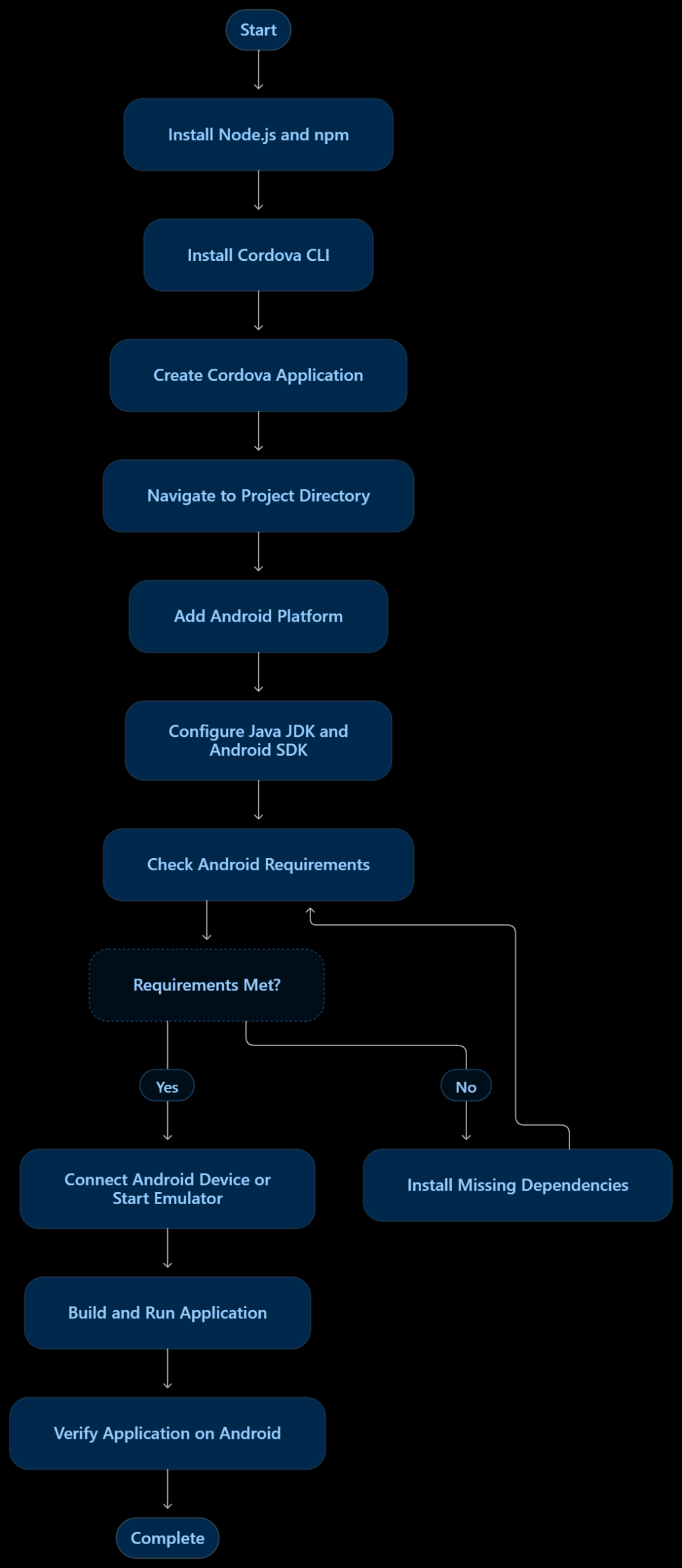
Apache Cordova Android Application Development Flow
2. Installing the Cordova CLI
Apache Cordova provides a command-line interface (CLI) distributed through npm. First, install Node.js and npm on your system.
You can verify the installation using:
node --version
npm --version
After confirming that Node.js and npm are installed, install Cordova globally.
For Windows:
npm install -g cordova
For Linux and macOS:
sudo npm install -g cordova
The -g option installs Cordova globally, allowing you to execute Cordova commands from any directory.
Verify the installation:
cordova --version
3. Creating a Cordova Application
After installing Cordova CLI, create a new application.
First, navigate to the directory where you want to create your project.
Execute the following command:
cordova create demoapp com.test.app "Hey!"
Here:
demoapp– Application project directory name.com.test.app– Unique application package identifier.Hey!– Application display name.
After successfully creating the project, navigate into the application directory:
cd demoapp
Your Cordova project structure will look similar to this:
demoapp/
├── config.xml
├── hooks/
├── platforms/
├── plugins/
├── www/
│   ├── css/
│   ├── img/
│   ├── js/
│   └── index.html
└── package.json
The www directory contains the application’s web content, including HTML, CSS, and JavaScript files.
The config.xml file contains application configuration details, while the plugins directory contains installed Cordova plugins.
4. Adding the Android Platform
Cordova supports multiple platforms. To build an Android application, you need to add the Android platform to your project.
Run the following command:
cordova platform add android
To check the installed platforms, execute:
cordova platform list
To check the Android platform requirements, run:
cordova requirements android
This command checks whether the required Android development tools are available and properly configured.
If you need additional information about Cordova commands, use:
cordova --help
cordova platform --help
Note: Always run the requirements check after adding the Android platform to identify missing dependencies before building your application.
5. Setting Up the Android Development Environment
To build and run a Cordova Android application, you must configure the Android development environment.
5.1 Install Android Studio
Download and install Android Studio from the official website:
Android Studio provides the Android SDK, SDK Manager, emulator, and other development tools.
Open Android Studio and use the SDK Manager to install the required Android SDK platform and build tools.
5.2 Install Java Development Kit (JDK)
The Java Development Kit is required for compiling Android applications.
Install the JDK version supported by your selected Cordova Android platform.
You can verify your Java installation using:
java -version
javac -version
5.3 Configure Gradle
Gradle is used to automate the Android application build process.
Cordova Android generally manages the Gradle wrapper required by the platform. Make sure the required Gradle version is compatible with your Android Gradle Plugin and JDK configuration.
5.4 Configure Environment Variables
After installing Java and Android Studio, configure the required environment variables.
For Linux:
Add the following configuration to your ~/.bashrc file, adjusting the paths according to your installation.
export JAVA_HOME=/path/to/jdk
export ANDROID_HOME=$HOME/Android/Sdk
export PATH=$PATH:$JAVA_HOME/bin:$ANDROID_HOME/platform-tools
If you use Android SDK command-line tools, configure their location as well:
export PATH=$PATH:$ANDROID_HOME/cmdline-tools/latest/bin
Apply the changes:
source ~/.bashrc
For Windows:
Configure the following environment variables through System Properties → Environment Variables:
JAVA_HOME– Path to the installed JDK.ANDROID_HOME– Path to the Android SDK directory.- Add the JDK
bindirectory and Android SDKplatform-toolsdirectory to the systemPath.
Verify the environment configuration:
echo $JAVA_HOME
echo $ANDROID_HOME
For Windows Command Prompt, use:
echo %JAVA_HOME%
echo %ANDROID_HOME%
6. Checking Android Requirements
After configuring the Android environment, navigate to your Cordova project directory and execute:
cordova requirements android
This command verifies the availability of the required tools, including Java and Android SDK components.
If any dependencies are missing, install or configure them before proceeding.
7. Running the Application on an Android Device or Emulator
Once the Android environment is ready, you can run your Cordova application on a physical Android device or an emulator.
7.1 Run on a Physical Android Device
To install and run the application on a physical Android device:
- Enable Developer Options on your Android device.
- Enable USB Debugging.
- Connect the device to your computer using a USB cable.
- Verify that the device is detected.
Run:
adb devices
After confirming that your device is listed, execute:
cordova run android --device
Cordova will build the application, install it on the connected Android device, and launch it.
7.2 Run on an Android Emulator
To run the application on an Android emulator:
- Open Android Studio.
- Navigate to Device Manager.
- Create a virtual Android device.
- Start the emulator.
Then execute the following command from your Cordova project directory:
cordova run android
Cordova will build and deploy the application to the running emulator.
8. Building the Android Application
If you only want to generate the Android application build without installing it on a device, execute:
cordova build android
For a release build, use:
cordova build android --release
The generated APK files are generally available under:
platforms/android/app/build/outputs/apk/
For publishing an application, you must also configure signing and generate an appropriately signed release artifact. Follow the current Android publishing requirements.
9. Troubleshooting Common Issues
During Cordova Android application development, you may encounter environment or build-related issues.
Issue 1: Java is not installed or JAVA_HOME is not configured
Solution: Install a compatible JDK and configure the JAVA_HOME environment variable.
Issue 2: Android SDK not found
Solution: Verify the Android SDK installation path and configure ANDROID_HOME.
Issue 3: Gradle build failure
Solution: Check the Java, Gradle, Android Gradle Plugin, and Cordova Android version compatibility.
Issue 4: Android device not detected
Solution: Enable USB Debugging, check the USB connection, verify ADB drivers where applicable, and execute:
adb devices
Issue 5: Android platform requirements are not satisfied
Solution: Run:
cordova requirements android
Install the missing dependencies and verify the environment configuration again.
10. Apache Cordova Android Development Flowchart
The following flowchart illustrates the complete process of creating, configuring, building, and running a Cordova Android application.
[Insert the Android development flowchart here.]
Conclusion
Apache Cordova simplifies mobile application development by allowing developers to use familiar web technologies such as HTML, CSS, and JavaScript to create cross-platform applications. With its plugin architecture, developers can also access native device features without building every component separately.
By following this tutorial, you can install Cordova CLI, create a new project, configure the Android development environment, add the Android platform, and build and run your application on a physical Android device or emulator.
Whether you are developing a new mobile application or converting an existing web application into a mobile application, Cordova provides a practical approach to reusing web development skills and maintaining a shared codebase.
Frequently Asked Questions (FAQs)
1. What is Apache Cordova used for?
Apache Cordova is used to develop cross-platform mobile applications using HTML, CSS, and JavaScript. It allows developers to create applications for Android and other supported platforms using a shared codebase.
2. What are the prerequisites for building a Cordova Android application?
The main prerequisites include Node.js, npm, Apache Cordova CLI, a compatible Java Development Kit (JDK), Android Studio, Android SDK, and Gradle. The required versions depend on the installed Cordova Android platform.
3. How can I run a Cordova application on an Android device?
Connect your Android device using USB, enable USB Debugging, and execute the following command from your Cordova project directory:
cordova run android --device
Alternatively, you can use an Android emulator by executing:
cordova run android
Related Articles
How to install sockets in cordova both backend and frontend
How to setup animation in android
Need Help with Apache Cordova Android Application Setup?
Need assistance with Apache Cordova installation, Android platform configuration, JDK setup, Android SDK integration, Gradle build errors, or application deployment? Our experts can help with Cordova development, Android environment configuration, mobile application troubleshooting, JavaScript development, and application maintenance.
Get in touch with our team here.