
Post Date: July 31, 2019
Last Updated: October 28, 2026
Introduction
When managing a Linux server, identifying large files and directories is essential for disk space monitoring and troubleshooting. The du (disk usage) command helps you check how much disk space files and directories consume.
In this article, we explain how to use the du command with sort to display files and directories in ascending order by size.
Prerequisites
Before proceeding, ensure that you have:
- Access to a Linux server.
- A terminal or SSH session.
- Permission to access the directory you want to analyze.
Implementation
Step 1: Navigate to the Directory
Open a terminal or connect to your Linux server through SSH. Navigate to the directory you want to check. For example, to inspect /var/log, run:
cd /var/log
Step 2: Sort Files and Directories by Size
Execute the following command:
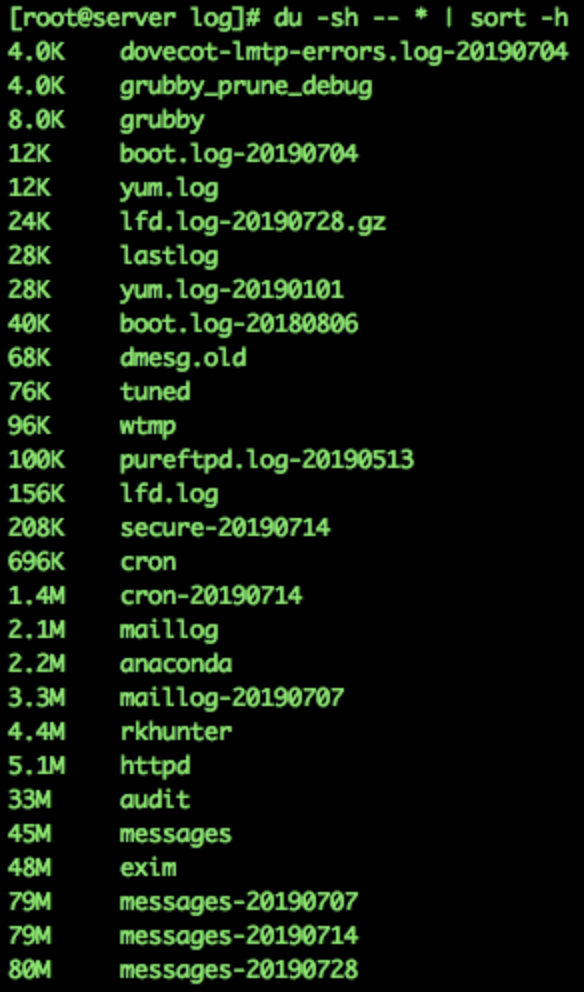
du -sh -- * | sort -h
Command explanation:
du— Displays disk usage.-s— Shows a summary for each file or directory instead of listing every item inside directories.-h— Displays sizes in human-readable units, such as KB, MB, and GB.--— Marks the end of command options.*— Matches non-hidden files and directories in the current directory.sort -h— Sorts the output by human-readable size in ascending order.
Step 3: Review the Output
The command displays each file or directory with its disk usage, sorted from smallest to largest.
Sample output:
4.0K    alternatives
8.0K    apt
16K     private
1.2M    unattended-upgrades
12M     journal
85M     apache2
Note: The output above is illustrative. Actual names and sizes will vary depending on your server.
Optional: Sort from Largest to Smallest
To list the largest files and directories first, use:
du -sh -- * | sort -hr
The -r option reverses the sort order.
Optional: Include Hidden Files and Directories
The * wildcard does not include hidden entries. To include hidden files and directories, use:
du -sh -- * .[^.]* 2>/dev/null | sort -h
This command suppresses errors that may occur when no matching hidden entries exist.
Conclusion
The du -sh -- * | sort -h command provides a quick way to identify disk usage across files and directories in a Linux directory. Use sort -hr when you need to identify the largest items first, making it easier to investigate disk space issues.
Frequently Asked Questions
1. How can I display the largest directories first?
Run:
du -sh -- * | sort -hr
2. Does du -sh -- * include hidden files?
No. The * wildcard does not match hidden files and directories by default. Use the optional hidden-file command above to include them.
3. What is the difference between du and df?
du reports disk usage for files and directories, while df reports filesystem-level space usage, including used and available capacity.
4. How can I check disk usage for a specific directory?
Specify the directory path directly. For example:
du -sh /var/log
Related Articles
- How to start the SSH service if it fails after rebooting the server
- How to Disable SSH Strict Host Key Checking in Linux
Need Assistance?
Need help with Linux server administration, disk space analysis, or troubleshooting? Contact the Pheonix Solutions team for assistance.