
Post Date: September 18, 2019
Last Updated: October 30, 2026
Introduction
This guide explains how to start a cPanel scheduled backup job manually from the command line, for example when you want a fresh backup before a migration or a risky change instead of waiting for the next scheduled run.
When you run the backup script yourself, you can hit this message even though backups are set up in WHM:
[cpbackup] Backup Not Enabled (This can be adjusted in WHM => Backup => Legacy Backup Configuration)
The cPanel backup command line has an option that gets past this check: --force. This guide shows how to use it, how to watch the backup run, and what to check first so a forced run doesn’t cause trouble.
Note: The original showed the option in its text as “–force” with a long dash, which doesn’t work if you copy it. The real option is two plain hyphens,
--force.
Prerequisites
Before you start the cPanel scheduled backup job manually, make sure you have:
- Root SSH access to the cPanel server
- Enough free disk space in your backup location (the default is
/backup, but yours may differ) - WHM access, to review your backup settings
Architecture
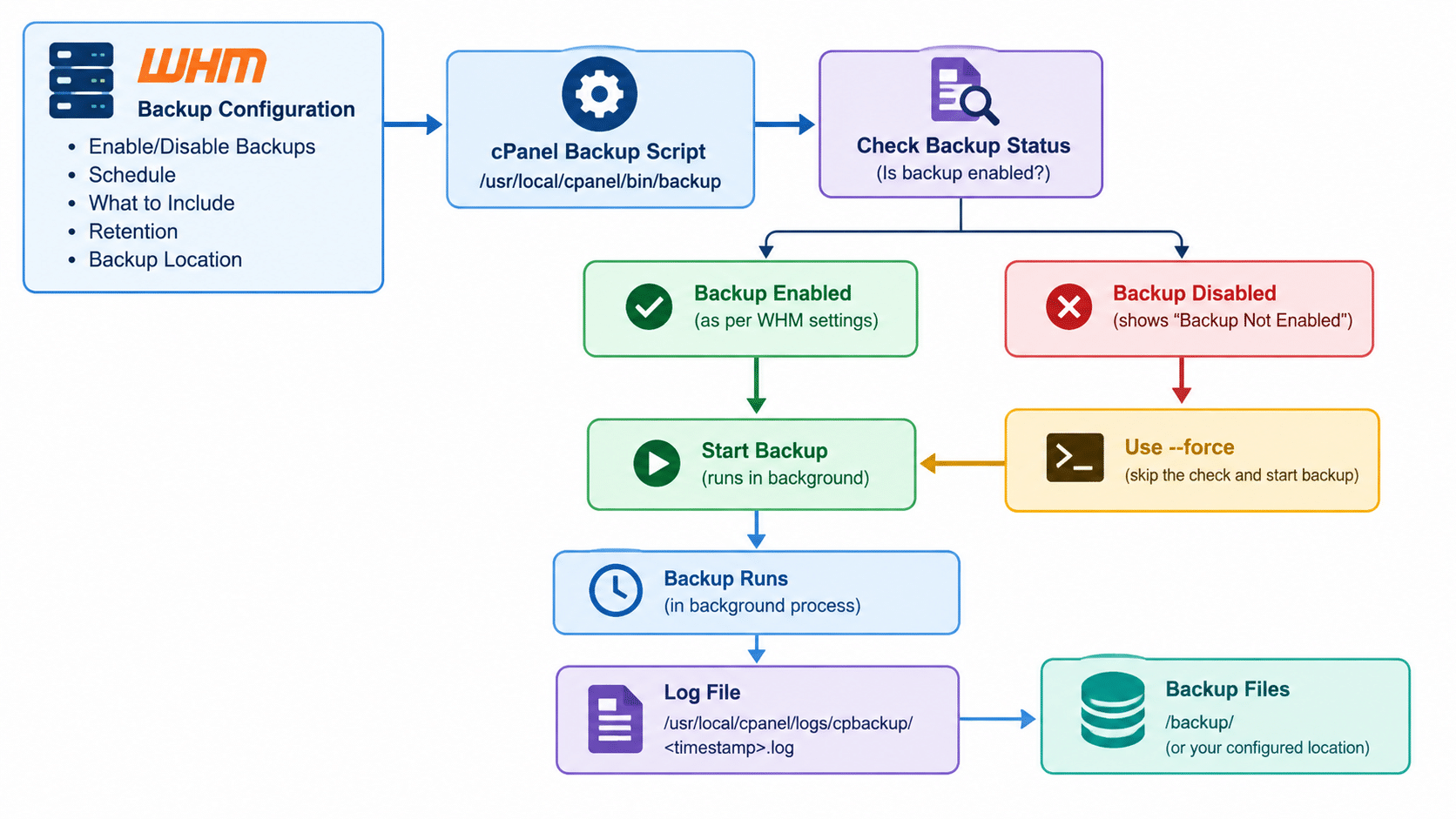
- WHM stores your backup settings: whether backups are enabled, the schedule, what to include, retention, and where backups are saved
- On schedule, cPanel runs the backup script,
/usr/local/cpanel/bin/backup - The script first checks whether backups are enabled. If it decides they aren’t, it prints “Backup Not Enabled” and exits without doing anything
- With
--force, the script skips that check and starts the backup anyway. It runs in the background and writes a log file under/usr/local/cpanel/logs/cpbackup/
The image below shows how the cPanel scheduled backup job runs and where --force fits in. For the settings themselves, see cPanel’s documentation.
Steps to Start the cPanel Scheduled Backup Job Manually
1. Check for a Running Backup and Free Space
Make sure a backup isn’t already running, so you don’t start a second one on top of it:
ps aux | grep -i "[b]in/backup"
If nothing is listed, no backup is running. Then check free disk space where backups are stored:
df -h /backup
2. Run the Backup Script Normally
/usr/local/cpanel/bin/backup
If backups are enabled and scheduled correctly, this may start the backup. If it prints “Backup Not Enabled”, continue to Step 3.
Note: Older guides use
/scripts/cpbackupfor this, which belongs to cPanel’s legacy backup system. On servers using the current backup system, use/usr/local/cpanel/bin/backupas shown here.
3. Force the Backup to Start
To start the cPanel scheduled backup job right away even when the script says backups aren’t enabled, add --force:
/usr/local/cpanel/bin/backup --force
You’ll see output like this:
[2019-09-18 07:44:46 +0000] info [backup] Started at Wed Sep 18 07:44:46 2019
[2019-09-18 07:44:46 +0000] info [backup] The backup is now running in the background in process 19601.
[2019-09-18 07:44:46 +0000] info [backup] The backup process's log file is "/usr/local/cpanel/logs/cpbackup/1568792686.log".
The backup now runs in the background, so you can close your terminal without stopping it.
4. Follow the Log
Each run of the cPanel scheduled backup job writes its own log, named in the output above. Watch it live:
tail -f /usr/local/cpanel/logs/cpbackup/<number>.log
Replace <number> with the number in your own output.
5. Confirm It Finished and Check the Files
When the log says the backup has completed, look in your backup directory:
ls -lh /backup/
Confirm the backups are there and have sensible sizes. A backup that’s suspiciously small or missing accounts is worth investigating before you rely on it.
Troubleshooting
If the cPanel scheduled backup job still doesn’t start, or you want to know why it said “Backup Not Enabled”, check these:
- Backups really are switched off. In WHM, open Backup → Backup Configuration and check that backups are enabled. The message mentions “Legacy Backup Configuration”, which exists on older versions.
--forceruns one backup, but it doesn’t turn on your regular schedule, so enable the status here if you want scheduled runs - The server is busy. A forced backup uses the same settings as the scheduled one and puts real load on the disk and CPU. Run it during quiet hours on a busy server
- The disk is nearly full. Recheck
df -hin Step 1, since a backup that runs out of space fails partway through - The backup seems to stop. Check the log file for errors, and confirm the process is still running with the
pscommand from Step 1
Conclusion
To start the cPanel scheduled backup job manually, check that nothing is already running and that you have disk space, then run /usr/local/cpanel/bin/backup --force and follow the log file. If the “Backup Not Enabled” message appears even though you configured backups, --force gets you a backup now, but review your backup status in WHM so the regular schedule runs too.
Frequently Asked Questions
Does –force change my cPanel scheduled backup job settings? No. It runs one backup using your existing configuration. It doesn’t enable or disable anything.
Is it safe to start the cPanel scheduled backup job manually during the day? It works, but backups are heavy on disk and CPU. On a busy production server, do it during off-peak hours.
Why does it say “Backup Not Enabled” when I set up backups in WHM? The script doesn’t consider backups enabled, which can happen when the status isn’t turned on in the backup system the script is checking. Review your settings under Backup → Backup Configuration.
Do I need to keep the terminal open? No. The backup runs in the background, so you can disconnect. Use the log file to check on it later.
Related Articles
How to Install WHM cPanel on Ubuntu 20.04
How to install WordPress in cPanel without Softaculous
Talk to Our Technology Experts
Need a reliable backup strategy for your cPanel servers? Our team can help with backup configuration and automation, off-server storage, restore testing, and ongoing hosting support.